Introduction
The POS (Point of Sale) system allows authorised users to apply active membership or promotional vouchers directly during a membership sale.
This ensures that customers who have already received a voucher, such as a Gift Membership or promotional offer, can easily redeem it at an on-site kiosk or assisted POS terminal.
Voucher application supports two paths: scanning a voucher during checkout or searching and applying a voucher before the sale begins. Both paths validate the voucher in real time through the Expian back end, ensuring only eligible and active vouchers can be redeemed.
By integrating voucher redemption into the POS flow, staff can quickly process transactions without manual verification, while the system automatically enforces rules such as preventing a Direct Debit payment when the remaining balance would be zero.
This automation maintains data accuracy, improves customer experience, and safeguards against duplicate or invalid redemptions.
How It Works
Option 1 – Apply Voucher at Checkout
- From the Home screen, select the relevant Membership product (e.g. Individual Membership). =

- On the Select Payment Method screen, choose between Card or Direct Debit.

- Once the membership is added to the basket, click the cart icon in the top right to open the checkout screen.
- If mandatory customer details have not been entered, an error will appear:
'Some mandatory customer detail fields are missing. Please use the Edit button to fill in the missing information.'


- Select Edit, complete the required Lead Member details, and proceed to Select Promotion → Open Scanner.

- The voucher will be scanned and validated. If any required fields are still missing or data conflicts occur, another warning appears.
- Once details are validated, the voucher is successfully applied, and the total amount updates to reflect the applied value.
Option 2 – Apply Voucher Before Checkout
- From the Search tab, click Open Scanner and scan or enter the voucher ID manually.


- When a valid voucher is found, it appears as Active, showing product, order, and validity details.
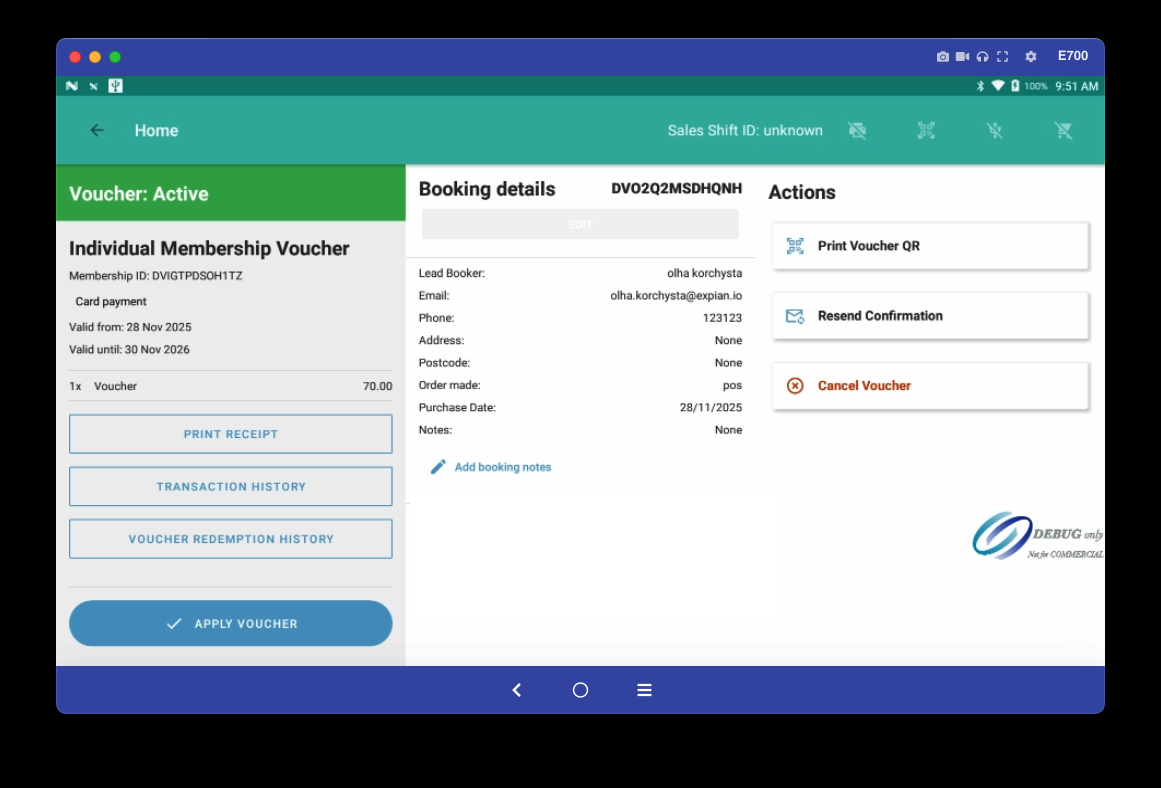

- Select Apply Voucher.
- The voucher is validated and becomes active for the next applicable product.
- Mobile POS only: Staff must tap Select Product to return to the Home screen and choose the product the voucher should apply to.
- Once the product is selected, the voucher appears as active in the right-hand panel and is applied automatically.


- Return to the Membership selection screen and choose the desired product (e.g. Individual Membership). The applied voucher will automatically discount or replace the product cost accordingly.
Direct Debit Exception Handling
When applying a voucher to a membership paid via Direct Debit, POS automatically checks whether the balance after applying the voucher is greater than zero.
- If the remaining amount is £0, an error message appears:
'You cannot continue with Direct Debit if the amount is zero.'
- The operator can Cancel or Continue with this voucher.
- If continuing, POS automatically switches the membership from Direct Debit to a standard payment type, allowing the sale to complete without breaching payment rules.
This ensures full financial compliance and prevents creation of invalid Direct Debit mandates.
Best Practices
- Always complete mandatory customer details before scanning or applying a voucher.
- Ensure that the voucher is active and applicable to the selected product type.
- For Direct Debit memberships, confirm that a balance remains due, Direct Debit cannot process a £0 total.
- When applying vouchers via the Search tab, verify that the voucher record corresponds to the correct membership.
- Avoid manually overriding voucher errors; restart the flow to maintain accurate validation.
- Confirm that any voucher applied at checkout is reflected correctly in the basket total before completing the sale.
Summary
The Apply Voucher function in POS provides two flexible ways to redeem customer vouchers—either during checkout or in advance through search.
Real-time validation ensures that only eligible vouchers are accepted, while built-in safeguards prevent incomplete data entry or invalid Direct Debit setups.
This combination of automation and user control improves operational speed, data accuracy, and customer satisfaction, ensuring every redemption is securely recorded within Expian’s central system.
Was this article helpful?
That’s Great!
Thank you for your feedback
Sorry! We couldn't be helpful
Thank you for your feedback
Feedback sent
We appreciate your effort and will try to fix the article