Introduction
Sales Shifts are a core part of how POS devices track, reconcile, and validate financial activity.
A Sales Shift begins as soon as the first transaction of the day is completed, and all subsequent activity, payments, adjustments, refunds, cash movements, belongs to that shift until it is formally closed.
This guide explains:
- How Sales Shifts are created and managed
- How the POS and Reservations Portal interact
- How to resolve shift-related login issues
- How to complete the Cashing Up process in the POS
- When and why admin permissions are required
- How to close a shift either in POS or in the Reservations Portal
By following this workflow, staff ensure accurate end-of-day reconciliation, clean reporting, and secure financial controls.
Overview
The POS uses Sales Shift settings to determine:
● Whether the shift belongs to the user or the device
● Whether old shifts must be closed before logging in
● How transactions are grouped for reporting
● Where and how cashing up should be completed (POS vs Reservations Portal)
A shift opens automatically once the first payment is taken, and remains active until it is closed through:
● POS → Cashing Up → Final Close, or
● Reservations Portal → Sales Shifts → Final Close
Different payment types, cash, card, external payments, are all recorded against the shift.
Cashing Up involves:
● Reviewing expected totals
● Recording Cash Add and Cash Lift adjustments
● Entering final counted amounts
● Resolving any Over-Short discrepancies
● Printing reconciliation receipts
Admins have additional permissions, including the ability to Force Close a shift when totals do not match.
Why Sales Shifts Matter
Correct Sales Shift configuration ensures:
● Smooth POS logins without unexpected 'shift already active' errors
● Accurate grouping of transactions
● Prevention of open historical shifts causing operational delays
● Clean reconciliation reports
● Accountability at user or device level
If old shifts remain unclosed, the system may prevent login until resolved. This is intentional to protect financial accuracy.
Why Cashing Up Matters
Cashing Up finalises all financial activity for the day.
It ensures:
● All payments (cash, card, external) match expected totals
● Adjustments (cash add/lift) are logged and audit-traceable
● Over-Short amounts are surfaced clearly
● Admin oversight is enforced where discrepancies occur
● Staff are logged out properly and shifts are fully closed
Accurate cashing up protects against miscounts, fraud, and reporting discrepancies.
1. Sales Shift Settings
Sales Shift ID Indicator
Located at the top toolbar of the POS.
If the POS shows:
Sales Shift ID: unknown
It means no shift exists yet, usually because no payment has been completed.
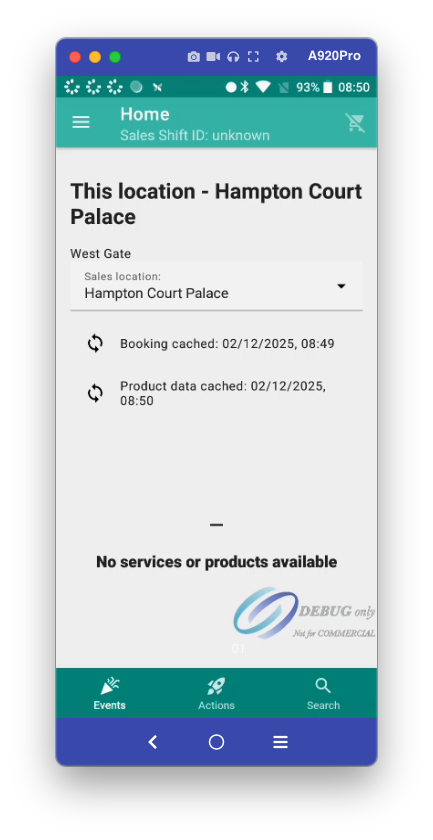
Once the first transaction is paid, a new Sales Shift is generated automatically.
Accessing Sales Shift Settings
● Tap the Menu (top left).
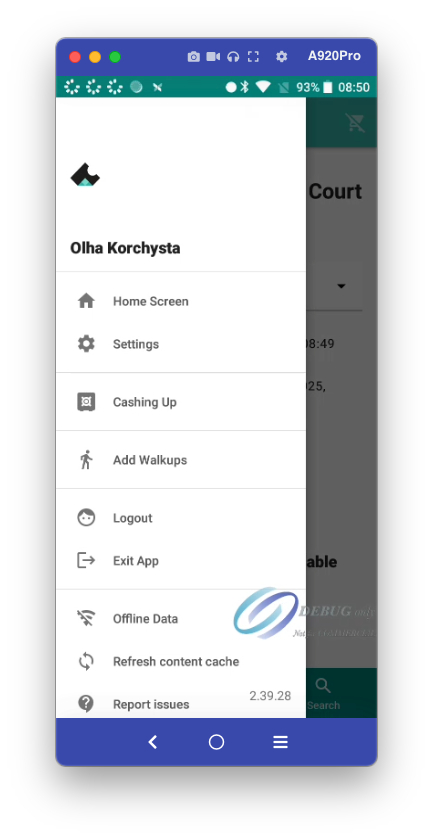
● Select Settings.
● Scroll to Cashing Up.
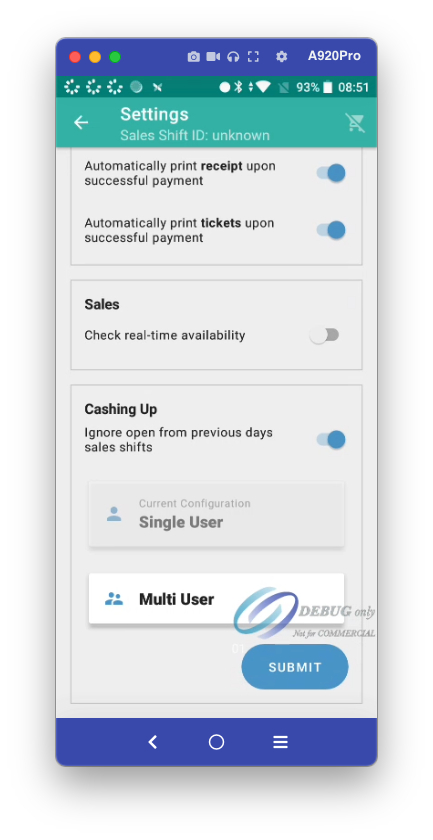
Single User vs Multi-User Mode
Single User (default)
● Shift follows the staff member, not the device
● Suitable for mobile or roving staff
● Maintains user-level accountability
Multi-User
● Shift is tied to the device
● Ideal for fixed tills shared by multiple users
● Supports device-level reconciliation
To change:
1. Go to Settings → Cashing Up
2. Select configuration
3. Tap Submit
Ignore Open From Previous Days’ Sales Shifts
Controls how POS handles unclosed shifts from earlier dates.
ON
● POS ignores older open shifts
● Staff can log in normally
● Only today’s shift is checked
OFF
● POS blocks login if any prior shift is unclosed
● User must close the old shift via the Reservations Portal
What Happens When Logging Out With 'Ignore Previous Days’ Shifts' OFF
1. User logs out
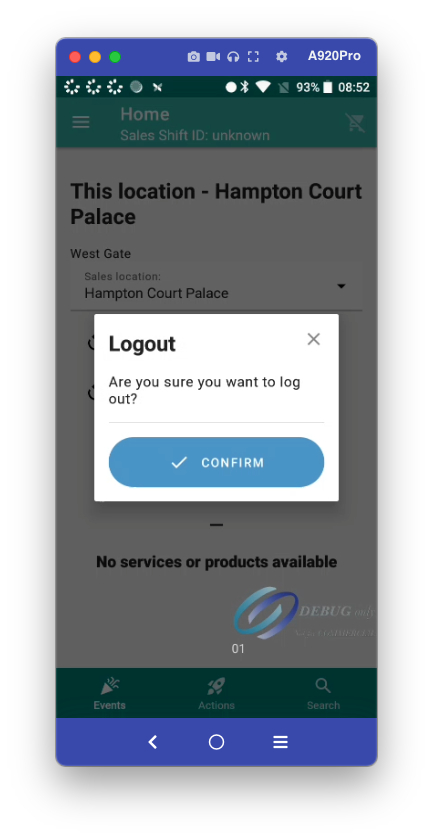
2. User attempts to log back in
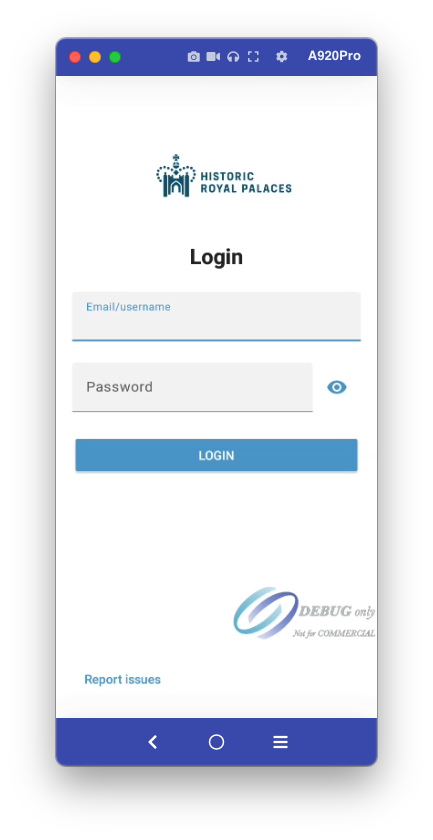
3. POS blocks login and shows error:
'Sales shift already active… Please contact administrator.'
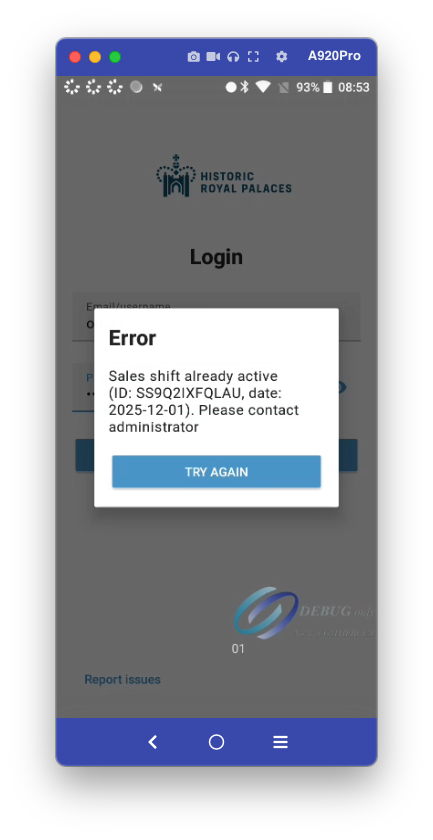
To resolve, the user must close the old shift in the Reservations Portal.
2. Managing Shifts in the Reservations Portal
Viewing Sales Shifts
● Open Reservations Portal
● Click Sales Shifts on the left menu
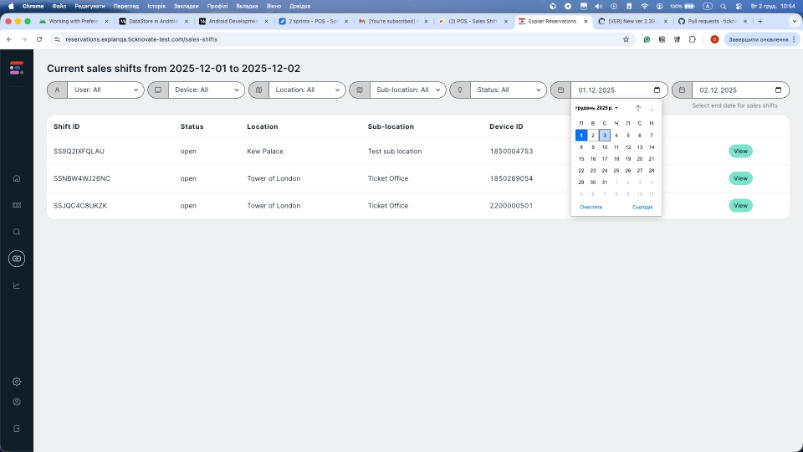
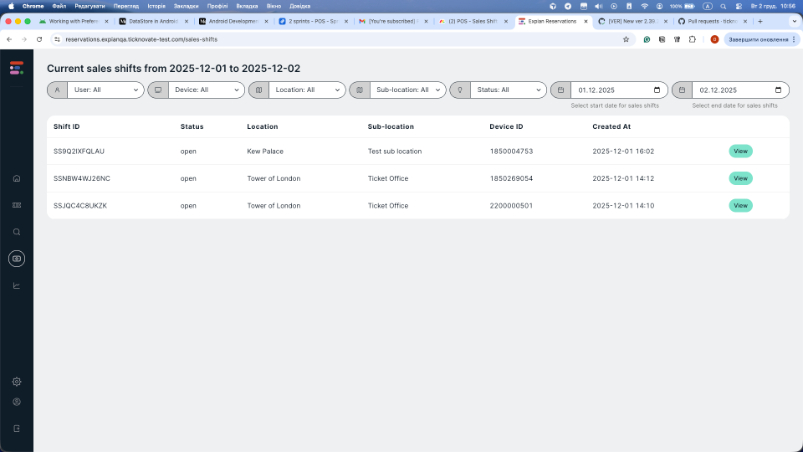
● Locate the relevant shift by date
● Click View
Shift Details Screen
Shows:
● Status
● Cash balance
● External payment balance
● Card payment balance
● Shift users
● Activity log (transactions, cash add/lift, etc.)
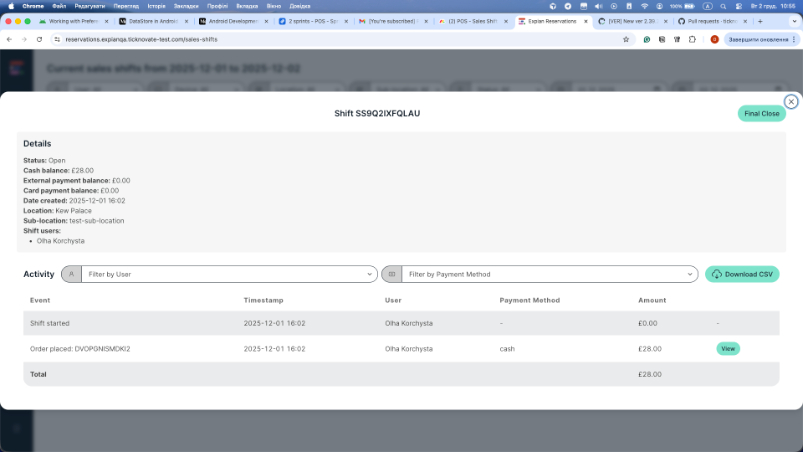
Closing an Old Shift – Reservations Portal
● Open the shift
● Click Final Close (top right)
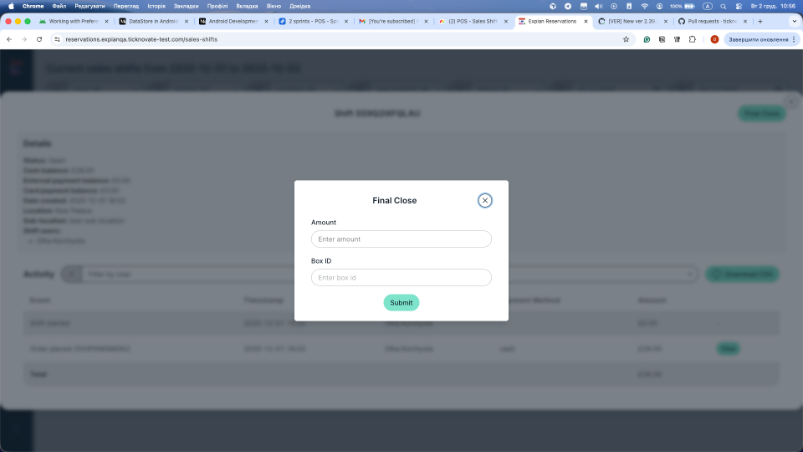
● Enter:
○ Amount counted
○ Box ID (if used)
Image placeholder: [[screenshot_final_close_amount.png]]
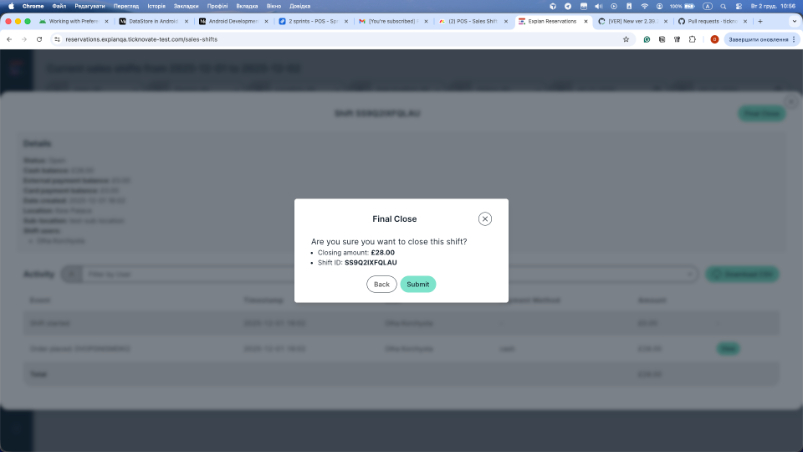
● Confirm via popup
3. Sales Shift Creation Example (POS → Portal)
● Staff makes a booking
● Payment is taken
● POS now displays a new Sales Shift ID
● In Reservations Portal → Sales Shifts, the new shift appears at the top
Image placeholder: [[screenshot_shift_created_in_portal.png]]
Multiple transactions (cash, card, external) accumulate in the same shift.
4. Cashing Up in POS
The Cashing Up menu provides four areas:
● Final Close
● Estimated Content
● Cash Add
● Cash Lift
Access via:
Menu → Cashing Up
Image placeholder: [[screenshot_cashing_up_menu.png]]
A. Estimated Content
Shows system-calculated expected amounts:
● Cash
● Card
● External Payment
Image placeholder: [[screenshot_estimated_content.png]]
Admin-only:
This tab is locked for non-admin users.
Users can print the Estimated Content receipt.
B. Cash Add
Used to record additional cash placed into the till.
Example:
● Add £10 note
Image placeholder: [[screenshot_cash_add_10.png]]
● Click Apply
● A popup appears asking:
Number of Copies to print.
Image placeholder: [[screenshot_print_copies_cash_add.png]]
The Cash Add entry appears in the Shift Activity log.
C. Cash Lift
Used to record cash removed from the till before final close.
Example:
● Select £5 in banknotes
Image placeholder: [[screenshot_cash_lift_5.png]]
● Click Apply
● Option to print a Cash Lift receipt
The Cash Lift entry then appears in the Shift Activity log.
D. Final Close (POS)
Final Close brings all totals together.
1. Enter Box Number
Image placeholder: [[screenshot_final_close_box_number.png]]
2. Enter counted cash amounts (coins & notes)
Image placeholder: [[screenshot_final_close_cash_entry.png]]
3. Totals and Over-Short automatically calculate
Image placeholder: [[screenshot_totals_and_over_short.png]]
4. Enter External Payment totals
If external payments were taken:
● Scroll to External Payment Method Totals
Image placeholder: [[screenshot_external_payment_section.png]]
● Enter amount (e.g., £6)
Image placeholder: [[screenshot_external_payment_entered.png]]
This updates Over-Short in this example to £0.00 if values balance.
E. Applying Final Close
If everything matches
The user clicks Apply.
If totals do NOT match
A warning appears:
Over-Short Amount
Image placeholder: [[screenshot_over_short_warning.png]]
Options:
● Back to Counting → re-enter correct totals
● Force Close → Admin only
Force Close is restricted to prevent fraud.
Non-admin users cannot close a shift with discrepancies.
F. Completion & Automatic Logout
After applying (or force closing):
A confirmation appears:
Success – Cashing Up Complete
Image placeholder: [[screenshot_cashing_up_success.png]]
Staff may:
● Print Final Close Receipt, or
● Logout
Automatic logout
After final close, the POS session ends and the user is taken back to Login.
Sometimes a system popup appears (e.g., Bluetooth/location permissions).
Image placeholder: [[screenshot_return_to_login.png]]
5. Cashing Up in Reservations Portal
In some cases, staff or admins may prefer or need to close a shift from the portal.
● Open shift → click Final Close
Image placeholder: [[screenshot_portal_final_close_button.png]]
● Enter:
○ Amount
○ Box ID
● Submit and confirm
Functionality mirrors POS but without cash denomination entry.
Summary
Sales Shifts track all financial activity and ensure accurate reporting.
When configured correctly:
● POS users can work without login blocks
● All payments roll into the correct shift
● Cash Add and Cash Lift adjustments are fully traceable
● Reconciliation is simple and transparent
● Admin permissions enforce proper financial control
● Final Close completes the shift and logs out the operator
Cashing Up ensures that counted totals match expected amounts and that discrepancies are surfaced and handled appropriately.
Key Features Overview
Helps detect discrepancies
Flexibility & admin oversight
Full reconciliation workflow
Multi-User Mode
Shows all transactions & adjustments
Force Close (Admin)
Prevents transactions without a shift
Shift follows user
Prevents reconciliation errors
Feature
Ensures correct day-end totals
Accurate cash management
Cash Lift
Single User Mode
Portal Final Close
Estimated Content
Cash Add
Shows if a shift is active
Record removed cash
Allows unbalanced closing
Automatic Logout
Clear accountability
Ends session after final close
Shift Activity Log
Final Close (POS)
System-calculated expected totals
Transparent reconciliation
Record additional cash
Alternate workflow for closing shifts
Ensures shift integrity
Benefits
Ignore Previous Shifts
Ideal for shared tills
Prevents operational blockages while maintaining control
Description
Sales Shift ID Indicator
Controls login blocking
Shift tied to device
Full financial audit trail
Was this article helpful?
That’s Great!
Thank you for your feedback
Sorry! We couldn't be helpful
Thank you for your feedback
Feedback sent
We appreciate your effort and will try to fix the article