Release Notes – Version 3.4
Product: Expian booking and ticketing platform
Release version: v3.4.0-rc4
Document date: 17/08/2026
Audience: Client teams and account contacts
About this release
Version 3.4.0 is a mix of new features, feature improvements and also a large number of fixes raised during UAT testing.
The headline additions are:
- WCAG 2.1 Standard or higher items
- Tesco Clubcard improvements
- Promotions with Annual pass entitlements fixed
How to read this document
Every item below lists:
- Reference – the ticket number you can quote to our support team, plus the related support case number where one exists.
- What's changed – a plain description of the change.
- How to check it – steps your own team can follow to confirm the change is working in your environment.
Every change appears once only. Where a change applies across all clients, it is listed in the shared section rather than under the client who first raised it.
Items marked No customer action needed are internal or infrastructure changes with no visible behaviour for you to test.
Online booking journey (B2C)
General
WCAG2.1AA compliance work
Reference: EXN-132
What's changed: Field labels, dialog labels and browser zoom
What to check:
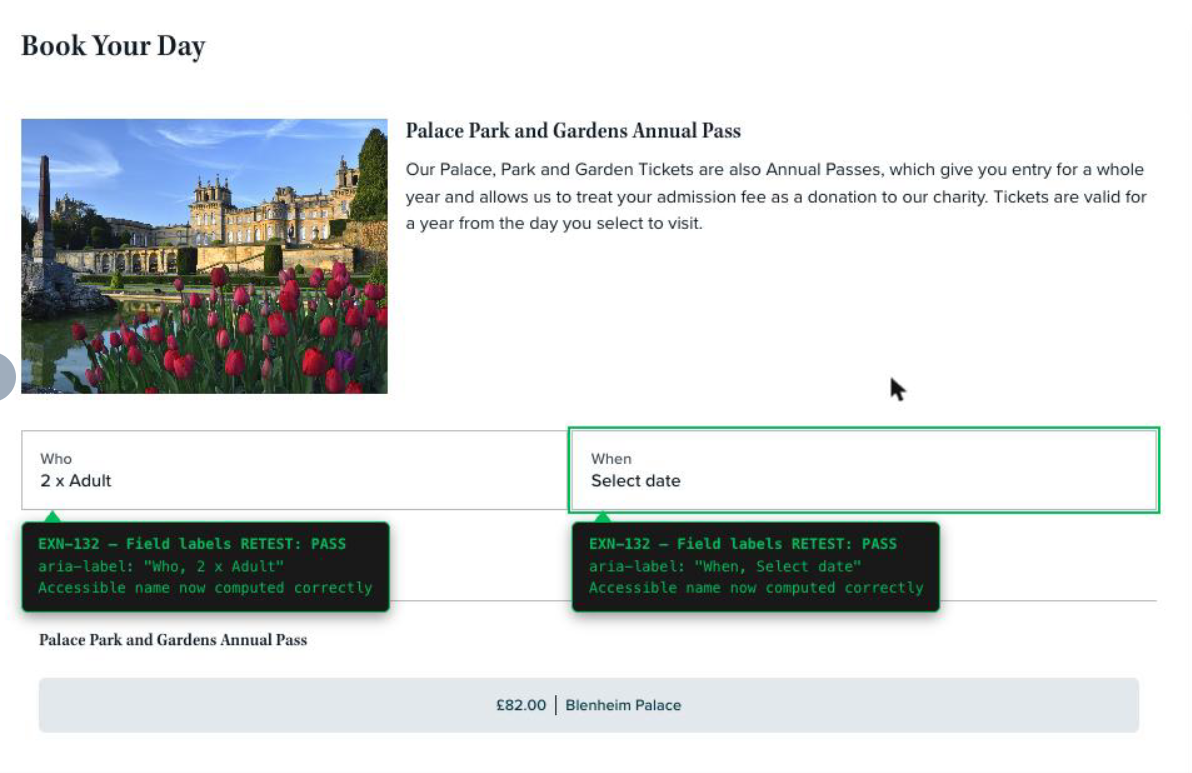
Field labels 'Who/When' picker buttons on booking page, each control has an accessible name.
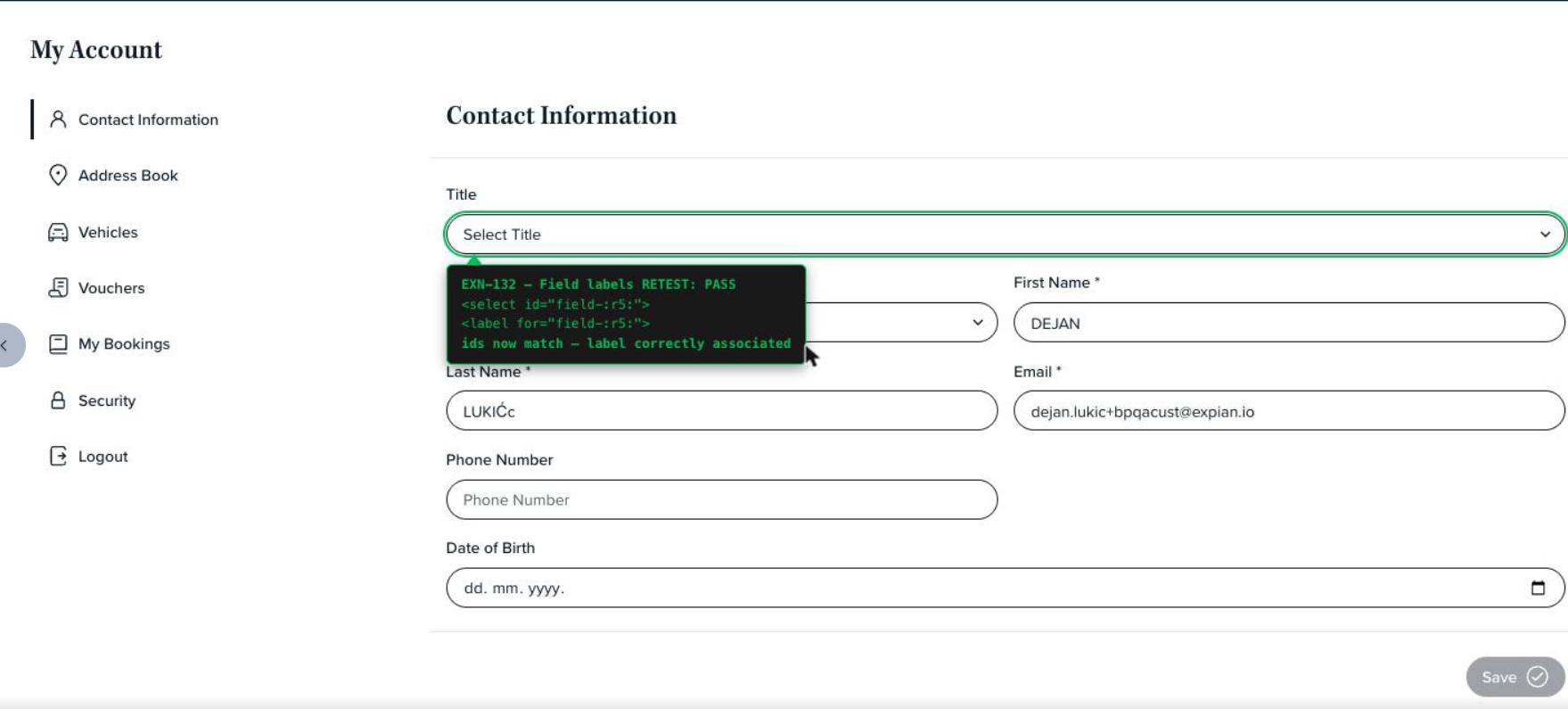
Field labels ' Title/Gender' dropdowns on account > contact. The ID's now match.
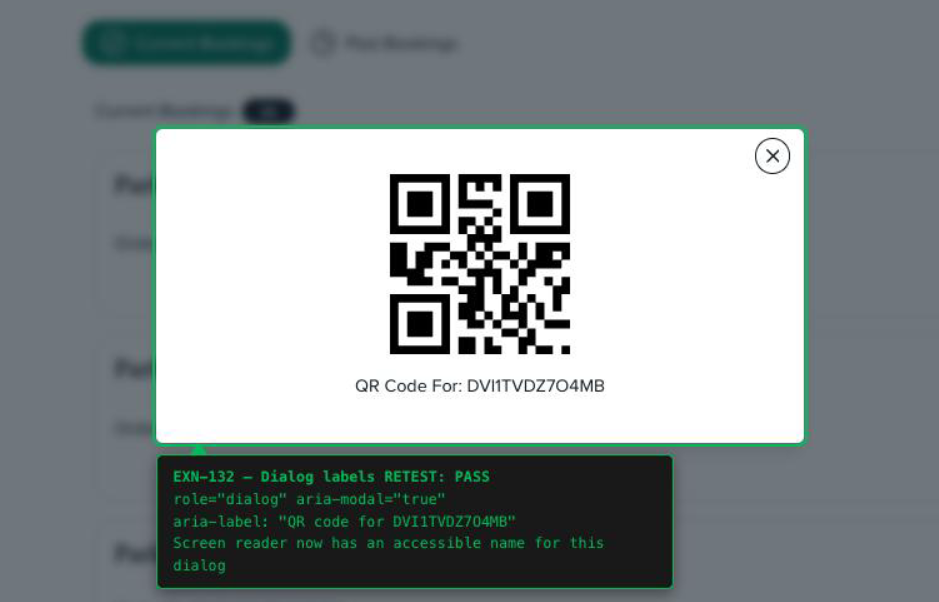
Dialog labels, QR code modal (My Bookings > View QR) screen reader has an accessible name for this dialog.
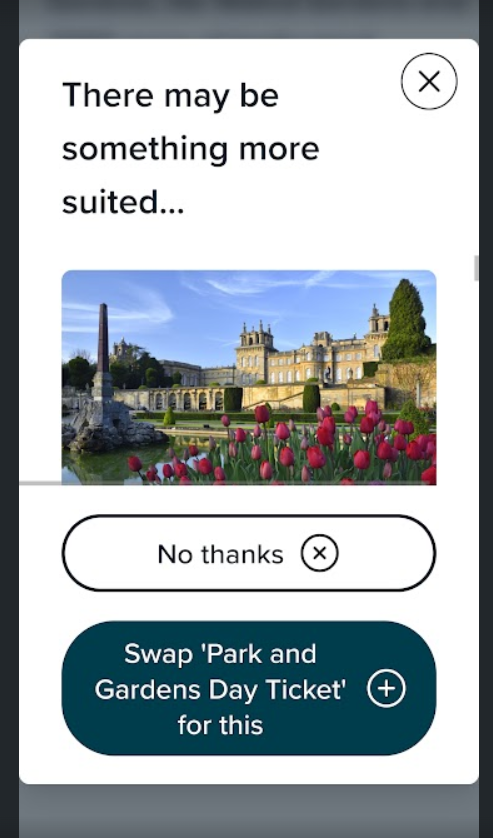
Browser zoom/reflow, on swap recommendation the swap button was not fully visible. This is now fixed.
B2C Admission & Events label change on tabs
Reference: EXN-61
What's changed: Labels changed from Admission & Events to 'Tickets & Experiences' on the tabs
How to check it:
- Go to B2C
- Select 'New Order'
- Check the tabs under 'Book Your Day'
- Confirm they now say 'Tickets' & 'Experiences'
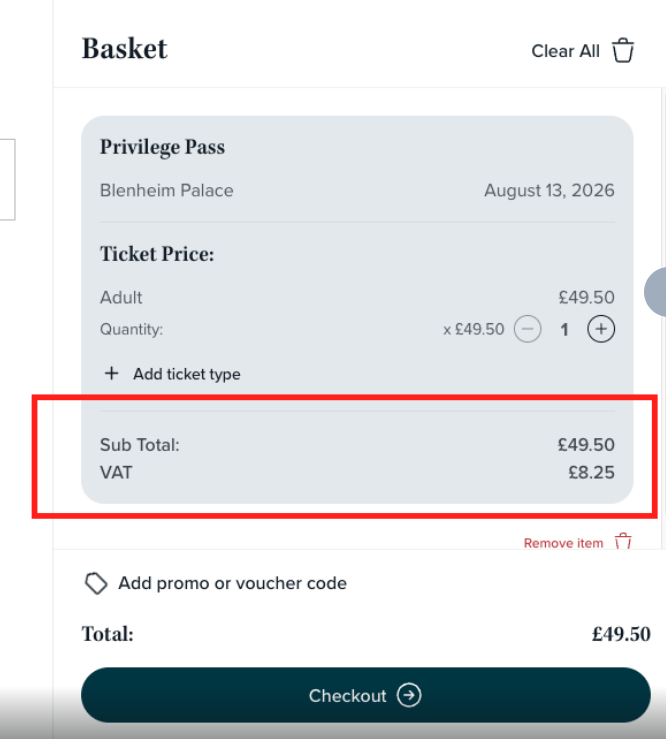
Show VAT breakdown as line item in basket
Reference: EXN-91
What's changed: Now display a line item showing the VAT amount in the basket on B2C
How to check it:
- Place a booking on B2C with a product with VAT.
- Check the basked and see a new line item with VAT amount shown.
Deposit amounts now show in the basket summary
Reference: EXN-64
What's changed: Changed 'Edit' to 'Change my order'
How to check it:
- Place an order for an annual pass.
- Either view order in B2C account or follow 'Manage booking' link on confirmation email.
- Check the 'Edit' button now shows 'Change my order'.
Disruption/Also happening to display when date selected
Reference: EXN-106
What's changed: Info/Warning message was not displaying until the timeslot (price) was selected, this has now been fixed to display as soon as the date is selected.
How to check it:
- Select New order.
- Select a date that has a message set in Admin.
- Ensure the message displays after the date is selected and the item doesn't need selected before it displays.
Home/billing address checkboxes reverse order & default tick 'same as billing'
Reference: EXN-87
What's changed: The home/billing address check boxes moved to the correct place and 'Same as billing' is ticked by default.
How to check it:
- Start a booking on your booking site with gift aid and proceed to entering the bookers details.
- Check the Home/Billing check boxes are in the correct order and 'same as billing' is ticked.
Updated image on Gift Aid modal
Reference: EXN-100
What's changed: Updated the Gift Aid modal image to the new image provided.
How to check it:
- Place a new order and create a new customer account.
- Proceed through to the Gift Aid prompt.
- Check the image is correct.
B2C Mobile - fixed he 'When' field, was showing as 'Outbound'
Reference: EXN-114
What's changed: On mobile when you go to place an order the 'When' field is now showing correctly, it had been showing as 'Outbound'
How to check it:
- Go to B2C on a mobile device.
- Place a new order and make sure the date field shows with the label 'When'.
B2C Mobile - Next page opens on previous scroll position fixed
Reference: EXN-117
What's changed: On Mobile when placing an order, after completing beneficiary details, after selecting continue, now lands at the top of the next page not part way down.
How to check it:
- Go to B2C on a mobile device.
- Place an order and complete beneficiary details.
- Scroll down and select continue.
- Should land at the top of billing and payment details page.
B2C My Account > My Details removed mandatory from Title, Phone & Gender
Reference: EXN-119
What's changed: Fixed a regression where the 'Title', 'Phone' & 'Gender' fields were mandatory in the my details area on a customer account.
How to check it:
- Log into a customer account.
- Go to the 'My Account' area.
- Ensure that the Title, Phone & Gender fields are not mandatory.
B2C Amending an order, donation slider should be on and hidden
Reference: EXN-135
What's changed: When amending an order you will no longer see a 'Donation' slider. It will be defaulted to on and hidden.
How to check it:
- Log into a customer account with an existing order.
- Select 'Change my order'.
- Check that you don't see a donation slider.
- Proceed to place an order for an annual pass.
- Ensure the price is treated as a donation.
B2C Incorrect option text 'Adventure Play' shown when buying a Privilege Play Pass
Reference: EXN-105
What's changed: When placing an order it was set to show the price and the 'Venue'. This was confusing for a Privilege and Play Pass. We have now removed 'Venue' from this field to avoid confusion.
How to check it:
- On B2C select 'New Order' and select a Privilege Play Pass
- Select the Who and When.
- Check the amount field no longer shows Venue.
B2C Amending an order, donation slider should be on and hidden
Reference: EXN-135
What's changed: When amending an order you will no longer see a 'Donation' slider. It will be defaulted to on and hidden.
How to check it:
- Log into a customer account with an existing order.
- Select 'Change my order'.
- Check that you don't see a donation slider.
- Proceed to place an order for an annual pass.
- Ensure the price is treated as a donatio
Promotions and pricing
Recommendation items show their names and prices
Reference: EXN-129
What's changed: Fixed an issue where promotions were not working when set up with Auto apply if compatible products are owned (and active) in an account.
How to check it:
- In Admin, create a promotion and ensure that an annual pass product is selected on the promo settings tab.
- In a channel the promotion is set to, select the product within the set dates and ensure the promo is applied.
Wallets
Wallet selector added in Admin > Product
Reference: EXPIAN-63
What's changed: To match the set up created for PDF to enable you to turn them on or off by product, we have matched this with the 'Download to Wallet'. In Admin > Product on the 'Important info' tab you will see both options, they are linked being one must be on however they can both be on at the same time. If a product should be downloadable to a wallet then this setting should be set to on.
How to check it:
- In Admin go to a product that should be downloadable to wallet.
- Go to the important info tab and set 'Downloadable to Wallet' to on.
- Publish and clear the cache.
- Place an order for this product and ensure that you are able to download to wallet.
- Ensure the download to wallet is on the confirmation email.
Wallet pass should refresh when updated
Reference: EXN-75
What's changed: This was a regression, the wallet pass should update when booking is amended. This works when open on Apple Wallet, for google wallet you need to refresh the pass if open by closing and reopening.
How to check it:
- Download a pass to both google and apple wallet.
- Make an amendment like extending the validity date.
- Check the pass is updated with the new validity date.
Buggy Tour Walled Pass colour change
Reference: EXN-104
What's changed: The background colour on the Buggy Tour digital wallet was the incorrect colour. This has now been updated.
How to check it:
- Download a buggy tour pass to both wallet types.
- Open pass and make sure it's the correct colour.
VAT calculated correctly when donations are included in the base price
Reference: EXPIAN-356
What's changed: VAT is now calculated correctly when the donation-in-base-price option is switched on. VAT is treated as inclusive within the price.
How to check it:
- In the Admin Portal, switch on donations-in-base-price for a product that has VAT configured.
- Buy that ticket on your booking site.
- Open the confirmation email.
- The VAT amount is shown, calculated as the VAT included within the price.
Tesco Clubcard
Tesco Clubcard ability to pay for total order amount with Tesco Voucher
Reference: EXN-133
What's changed: Tesco vouchers can now be used to cover the total balance and can be up to .50p higher than the basket value to cover for any products that are .50p as vouchers are in £ only.
How to check it:
- On the Tesco URL place an order using a voucher to equal value.
- Proceed through to complete the order and ensure the order is completed and voucher is redeemed.
Tesco Clubcard URL remove vouchers and other tab
Reference: EXN-139
What's changed: Removed Vouchers and Others tab from the Tesco URL. Now tabs will only show if there is a product set to use Tesco vouchers in Admin. So if an event is selected for Tesco Vouchers then you will have the 'Tickets' and 'Experiences' tabs.
How to check it:
- On the Tesco URL check you no longer see Vouchers or Other Tabs.
Set Product to be available on Tesco URL
Reference: EXN-62
What's changed: We have added the ability to select the products for the Tesco URL in Admin to make it easier to add/remove products that can be sellable on this URL.
How to check it:
- In Admin > Products > Integrations Tab.
- You will now see a Tesco Clubcard drop down.
- If a product is set to Yes then it will be available on the URL.
Note if a product is Tesco only then please ensure the 'Searchable' box is not ticked on the description page.
Emails
Surface Voucher ID in voucher order confirmation emails
Reference: EXN-45
What's changed: The voucher ID was not displaying in the order confirmation email. It has now been added so it's clear for a customer to see the Voucher ID.
How to check it:
- On your booking site, place an order for a voucher.
- Check the email confirmation.
- Ensure the Voucher ID is displayed.
Remove download your tickets for Pay on Arrival orders
Reference: EXN-50
What's changed: Pay on arrival orders were incorrectly allowing tickets to be available to download. This has now been removed. The order will be processed and they will have a scan to pay QR code on the confirmation email.
How to check it:
- On reservations place an order and select the payment type 'Pay on Day'
- Go to the confirmation email and ensure that there is no download tickets link.
- Ensure there is a 'Scan to Pay' QR code.
- Follow Manage Order and check there is not a download to wallet link on B2C.
Trade Partner
Prices not hidden for trade partners on booking confirmation emails
Reference: EXN-99
What's changed: Prices were showing on trade orders on the confirmation emails. This has now been removed.
How to check it:
- Place an order on Trade portal or on behalf on Reservations.
- Check the email confirmation and ensure no pricing is shown.
Google Tag Manager
Prices not hidden for trade partners on booking confirmation emails
Reference: EXN-101
What's changed: Fixed the gift aid journey in GTM.
How to check it:
Testing Notes
Follow the gift aid journey for any product that has gift aid set in https://booking.blenheimpalace-qa.expian.io/ Ensure that the following steps appear in the dataLayer (`window.dataLayer available in the console).
event: 'pop_up', type: 'gift_aid', action: 'appear' when the pop up for gift aid appears.
event: 'pop_up', type: 'gift_aid', action: 'appear-confirm-decline' when a user initially declines gift aid.
event: 'pop_up', type: 'gift_aid', action: 'yes' when a user accepts gift aid.
event: 'pop_up', type: 'gift_aid', action: 'no' when a user declines gift aid.
Was this article helpful?
That’s Great!
Thank you for your feedback
Sorry! We couldn't be helpful
Thank you for your feedback
Feedback sent
We appreciate your effort and will try to fix the article