This document explains how the SmartPos app records scans and visitor attendance, from the moment a QR code or barcode is read through to what is stored on the server.
This section maps the flow to the codebase for anyone who needs to verify behaviour or raise follow-up questions.
What is a Scan Record?
A Scan Record is a log of every scan attempt — whether it succeeded, failed, was overridden, or was saved offline.
Think of it as an audit trail: who scanned what, where, when, on which device, and what the app decided.
Important business fields
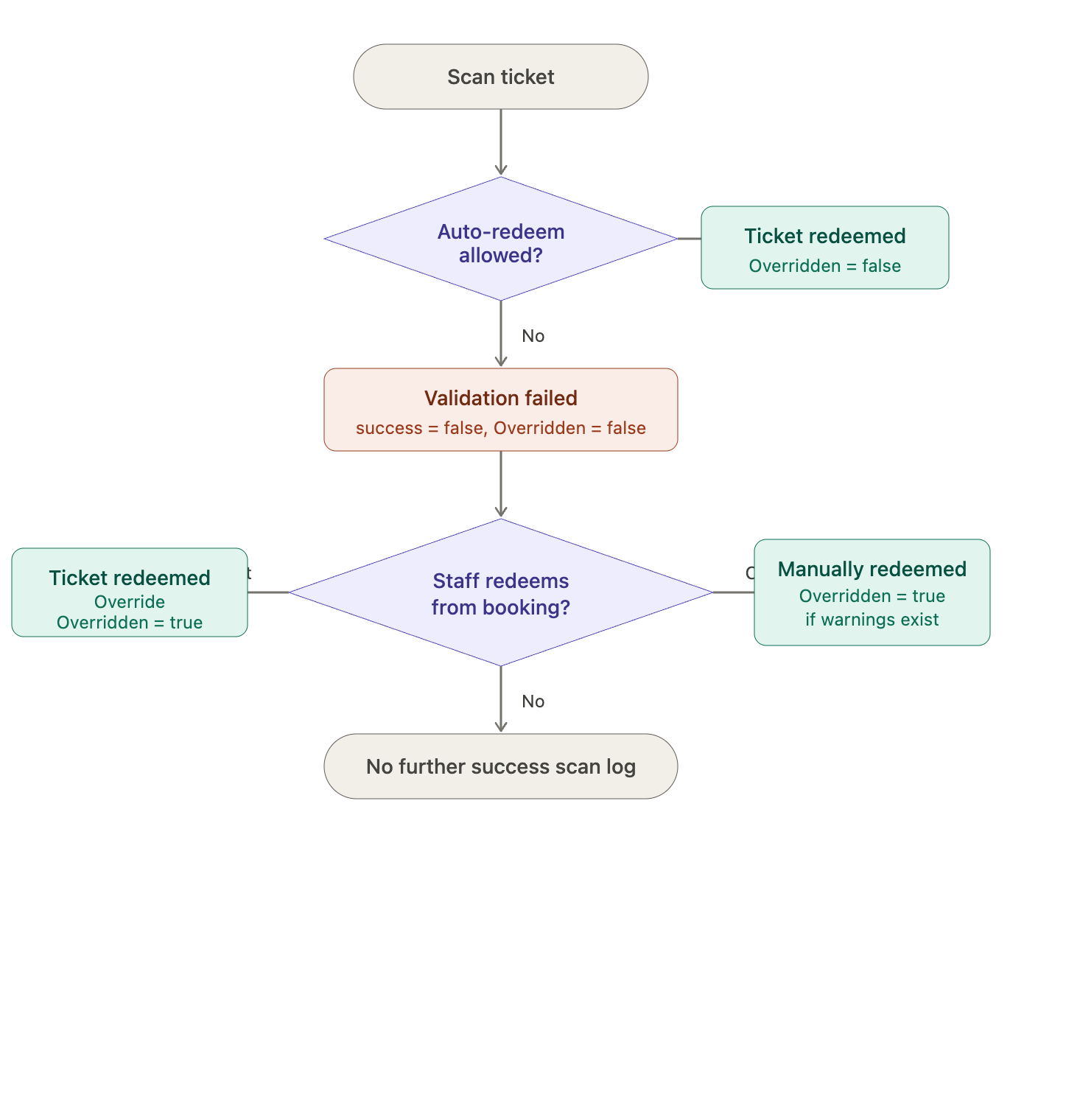
Scan Record override rules
The Overridden flag is a reporting marker on a successful Scan Record.
When Overridden = true
Set when the scan message is “Ticket redeemed - Override”, or when override-reason messages are attached from the booking validation, or during offline Go City sync (see above).
When Overridden = false (default)
Almost all other Scan Records, including:
- “Ticket redeemed” from automatic fast scan (no prior warning)
- “Re-entry” and other automatic success messages
- “Ticket manually redeemed” after a new purchase on the payment-completed screen (no booking warning context)
- All failed scans (
success = false) — these never carry the override flag as a success override - Membership, Go City (online, non-sync), and error scan logs
What triggers a change to Overridden
The app does not edit an existing Scan Record to flip Overridden later. Each upload is a new record:
- A failed validation scan may be logged first (
success = false, Overridden = false). - If staff then redeem manually, a second Scan Record is created (
success = true) with Overridden = true where the rules above apply.
Edge cases
flowchart TD
    A[Scan ticket] --> B{Auto-redeem allowed?}
    B -->|Yes| C["Scan Record: Ticket redeemed<br/>Overridden = false"]
    B -->|No| D["Scan Record: validation failed<br/>success = false, Overridden = false"]
    D --> E{Staff redeems from booking?}
    E -->|Same scanned ticket| F["Scan Record: Ticket redeemed - Override<br/>Overridden = true"]
    E -->|Other tickets in booking| G["Scan Record: Ticket manually redeemed<br/>Overridden = true only if warnings exist"]
    E -->|No| H[No further success scan log]
When Scan Records are created
A Scan Record is created after every scan outcome, including:
- Successful ticket redemption or re-entry
- Failed validation (expired, wrong location, already used, unpaid, etc.)
- Membership card checks (valid or invalid)
- Go City pass validation (online or offline)
- Manual redemption from the booking details screen
- Membership walk-up (“applied entitlement” and “attendance entry” messages)
- Offline saves (e.g. “Ticket redeemed locally”, “No Internet Connection. Saved locally”)
The app sends Scan Records to the server when online. If the network is unavailable, they are stored on the device and uploaded later during sync.
What is an Attendance Record?
An Attendance Record represents a visitor entry event — someone (or a group) entering at a location, counted against a ticket type.
It answers: how many people entered, for what product/ticket type, at which location, linked to which pass or membership.
Important business fields
When Attendance Records are created
Ticket scan / redeem flow (pre-purchased tickets):
- During ticket redemption, an Attendance Record is created automatically on the backend — not by the scan ticket flow on the device. The mobile app only calls the redeem API and uploads a Scan Record; it never submits attendance for that path.
Attendance created explicitly by the POS app (POST /attendance via AttendanceUseCase):
Attendance is created on-device for:
- Membership / patron walk-up — after staff confirm visitor counts on the walk-up screen
- Go City passes — when a pass is validated as usable (first visit or allowed re-entry)
- Regular walk-up (non-membership) — when staff record unticketed entries by ticket type
The mobile app only creates new attendance entries. There is no “update attendance” API call in the codebase.
Why both exist
Relationship: For membership walk-up and Go City, the app usually creates both a Scan Record and an Attendance Record (Scan Record may include Attendance ID after POST /attendance returns). For standard ticket redemption, the app creates a Scan Record and calls the redeem API only — no client-side attendance; server-side attendance (if any) is not visible in the mobile code.
End-to-end flow overview
flowchart TD
    A[Staff scans QR/barcode] --> B[ScannerManager captures code]
    B --> C{What kind of code?}
    C -->|Looks like membership/patron| D[Membership path]
    C -->|Go City pass| E[Go City path]
    C -->|Expian ticket/booking/order| F[Ticket path]
    D --> D1[Validate membership]
    D1 --> D2[Scan Record: membership result]
    D2 --> D3{Fast scan + valid?}
    D3 -->|Yes| D4[Walk-up screen]
    D4 --> D5[Attendance Record + Scan Record: Entry]
    E --> E1[Validate with Go City + check re-entries]
    E1 --> E2[Attendance Record if allowed]
    E2 --> E3[Scan Record with attendance link]
    F --> F1[Fetch ticket status]
    F1 --> F2[Validate location, time, status, permissions]
    F2 --> F3{Auto-redeem?}
    F3 -->|Yes| F4[Redeem ticket + Scan Record: success]
    F3 -->|No| F5[Show details + Scan Record: validation result]
    F4 --> F4a[Backend may create Attendance — not via POS]
    F4 --> G{Online?}
    F5 --> G
    D5 --> G
    E3 --> G
    G -->|Yes| H[Send to server immediately]
    G -->|No| I[Store locally, sync later]
Step-by-step: from scan to recording
Step 1 — Scan initiation
Staff open the scanner from the home screen, a hardware button, or an external Bluetooth scanner. The app runs in a scanning mode (Fast Scan, Search, Membership, etc.) that affects what happens next.
The scanned string is broadcast inside the app and routed in BaseViewModelActivity:
- Not a standard ticket format → membership lookup first (unless already confirmed as ticket)
- Go City pass (when enabled for the market) → Go City validation
- Otherwise → ticket / booking validation flow
Step 2 — Validation
Each path checks business rules before recording anything permanent.
Ticket / booking path
- Load ticket status from the server (or local cache when offline and fast scanning is enabled).
- Check: ticket exists, paid, not cancelled/suspended/replaced, location allowed, sub-location permission, visit window (date/time), re-entry limits, anti-passback interval.
- Decide:
- Auto-redeem — valid ticket, correct conditions → redeem immediately (fast scan).
- Show booking details — staff must choose tickets, override warnings, or check promos.
- Reject — show error (already redeemed, expired, wrong location, etc.).
Membership / patron path
- Look up entitlement (membership details) from the server, or use a minimal offline placeholder when disconnected.
- Check: active/expired/cancelled, card still current, location permission, simple-mode restrictions.
- Record a membership Scan Record immediately in fast scan.
- If valid → open walk-up screen to count visitors.
Go City path
- Validate pass with Go City’s service.
- Load today’s and past attendances for re-entry rules.
- Enforce: max re-entries per day, minimum time between scans (anti-passback).
- If valid → submit Attendance Record, then Scan Record with returned attendance ID.
Step 3 — Scan Record creation
Regardless of path, RecordScanUseCase builds a Scan Record with:
- Result message(s) matching what staff see on screen
- Success flag
- Context (location, operator, device, booking links)
The record is sent via POST /scans. On failure due to connectivity, it is queued in local storage.
Step 4 — Attendance creation (where applicable)
When the business flow requires counting an entry:
- Build an
Attendancewith ticket type, passenger count, location, reference. - Submit via
POST /attendance. - On success, optionally create a follow-up Scan Record (
AttendanceEntry) linked byattendance_id. - On offline failure, store locally and sync later.
Step 5 — Ticket redemption (ticket path only)
For pre-purchased tickets, redemption (marking the ticket as used) is separate from client-side attendance:
- Online: redeem API called immediately on auto-redeem or when staff confirm from the booking screen.
- Offline: ticket ID saved locally for redemption when connectivity returns.
- The app does not submit attendance on this path.
Step 6 — Synchronisation
When the device reconnects, FastScanningUseCase.syncTickets() runs (also triggered from main sync):
- Upload queued attendance records → create linked scan records for membership.
- Upload queued Go City offline scans (validate, submit attendance, record scans).
- Redeem locally saved tickets.
- Upload queued scan records.
Staff can see pending offline counts in the app’s offline/sync UI.
Scanning modes (business view)
Ticket redemption scan messages
Three messages cover most successful ticket Scan Records.
Related messages (same redeem family, not in the table above):
- “Re-entry” — automatic redeem when
numberOfScans > 0; Overridden = false; - “All tickets in booking redeemed” — scanned reference is a booking ID; Overridden = false.
- Add-on / ancillary variants use the same override vs manual pattern with matching labels.
Not created by the backend — all three messages are chosen and uploaded by the POS app when recording the scan log. Redemption itself is requested via the redeem API; the backend does not select these message strings.
Examples
Example 1 — Successful ticket fast scan (first visit)
Situation: Guest scans a valid, paid, in-window ticket at the correct gate. Fast scanning is on.
- App validates ticket → auto-redeem.
- Ticket marked redeemed on server.
- Scan Record: success = true, message = “Ticket redeemed”, Overridden = false, type = Ticket, reference = ticket ID.
Staff sees: Green success / ready for next scan.
Reporting: One successful scan; ticket status redeemed.
Example 2 — Successful re-entry (multi-use ticket)
Situation: Guest scans again with a ticket that allows multiple entries; re-entry rules pass.
- Validation sees previous scans (
numberOfScans > 0). - Auto-redeem records another use.
- Scan Record: message = “Re-entry”, success = true.
Staff sees: Re-entry success.
Reporting: Scan log shows re-entry; ticket use count incremented.
Example 3 — Duplicate scan (already redeemed)
Situation: Guest scans a single-use ticket that was already used.
- Validation fails with “already redeemed”.
- Scan Record: success = false, message = “Invalid Ticket: Already Redeemed”.
- No redemption, no attendance.
Staff sees: Red error — ticket already used.
Reporting: Failed scan logged for audit (helps detect fraud or confusion).
Example 4 — Duplicate scan offline (same ticket scanned twice without network)
Situation: Fast scanning enabled, no connectivity. Guest scans ticket first time — saved locally. Same ticket scanned again before sync.
- First scan: ticket saved for local redemption; Scan Record queued with “Ticket redeemed locally”.
- Second scan: app detects ticket already in local redemption queue.
- Scan Record: “Invalid Ticket: Already Redeemed” (offline variant).
Staff sees: Warning that ticket was already saved locally.
Reporting: Both attempts logged; only one redemption syncs.
Example 5 — Failed scan (wrong location or time)
Situation: Valid ticket but wrong gate or outside visit window. Auto-redeem not allowed.
- Validation builds warning state (wrong location, time in past, etc.).
- Scan Record: success = false with matching messages (e.g. “Wrong location”, “Time in the past”).
- Booking details shown; staff may manually override if permitted.
Staff sees: Red booking screen with reason; optional manual redeem.
Reporting: Failed scan logged even though ticket might still be valid elsewhere.
Example 5b — Override redeem (same scanned ticket)
Situation: Guest scans valid ticket but outside time window. Auto-redeem blocked. Staff redeem the scanned ticket from the booking screen.
- First Scan Record: success = false (e.g. “Time in the past”), Overridden = false.
- Staff redeem → redeem API succeeds.
- Second Scan Record: message = “Ticket redeemed - Override”, Overridden = true, override reason includes “Time in the past”.
Staff sees: Manual redeem success.
Reporting: Failed attempt + successful override entry.
Example 6 — Successful membership walk-up
Situation: Member scans card at fast scan; membership active; staff select “2 adults” on walk-up and submit.
- Membership Scan Record: “Membership Scanned”, success = true.
- Apply-entitlement Scan Record when submitting counts.
- Attendance Record: passenger count = 2, linked ticket type, reference = card ID.
- Scan Record: “Entry”, success = true, attendance ID from server.
Staff sees: Walk-up confirmation toast.
Reporting: Multiple scan logs plus one attendance row for footfall.
Example 7 — Go City pass (online, first visit)
Situation: Valid Go City pass at supported attraction.
- Go City API confirms pass.
- Attendance submitted to Expian backend.
- Scan Record: Go City type, success = true, message from Go City, attendance ID attached.
Staff sees: Pass accepted message from Go City integration.
Reporting: Attendance for settlement/counting; scan audit trail linked.
Example 8 — Go City re-entry blocked (anti-passback)
Situation: Guest scans again within the configured minimum interval.
- App finds recent attendance for same pass today.
- Validation fails: anti-passback violation.
- Scan Record: success = false, “Anti-passback violation”.
- No new attendance.
Staff sees: Error — scanned too soon.
Reporting: Failed scan; previous attendance unchanged.
Document generated from analysis of the SmartPos Android codebase. Last reviewed against the repository structure as of June 2026.
Entry points
Human-readable result, e.g. “Ticket redeemed”, “Invalid Ticket: Already Redeemed”, “Re-entry”, “Membership Scanned”
Offline Go City scans are synced after connectivity returns
Field
Success vs failure
Behaviour
Override applies to those tickets because warnings were present
Case
Situation
Records both
Re-scan of already redeemed ticket
Staff redeems the same ticket they scanned from the booking screen after auto-redeem was blocked (e.g. wrong time, wrong location)
ID
Details
Auto-redeem tickets; membership → walk-up; scan log every time
Lookup without auto-redeem
Timestamp
Scanned ID is not passed to override recording → message is “Ticket manually redeemed”; Overridden = true only if booking validation warnings were stored
Attendance ID
Overridden (API field: overriden) and override reason
Device ID
Booking ID / Order ID
Membership Walk-up
Dedicated scan button on device
Fast Scan
Ticket redeemed
Which ticket/product type counts toward capacity or reporting
Field
Passenger count
RecordScanUseCase (all scan log persistence), FindTicketUseCase (ticket validation + auto-redeem), AttendanceUseCase (attendance creation/submission), GoCityUseCase (Go City validation + re-entry rules), FastScanningUseCase (offline sync orchestration), MembershipUseCase
Links to membership order when applicable
Capacity, footfall, membership usage, Go City settlement
Message
Purpose
Business meaning
Ticket type entity ID
Yes (success = true)
Staff picks tickets on booking screen
Same warning messages from the booking state
Staff redeems other tickets in the booking (not the scanned code) while validation warnings exist on the booking
Meaning
Links to the commercial booking when known
Overridden
Timestamp
true (also stores prior validation warnings in override reason when present)
Scanner → auto-redeem
Manual redeem
Links to product configuration for reporting
Entry counting (membership walk-up, Go City, walk-up sales)
Location / sub-location
Same as Fast Scan after routing
Compliance, troubleshooting, staff accountability, scan history reports
Ticket type / add-on entity IDs
Hardware/camera scan → ScannerManager.sendResult() → broadcast received in BaseViewModelActivity.onTicketScanned() → routed by findScanningResult() to ticket, membership, or Go City paths
No — redeem API only
Membership scan log, then attendance when staff submit counts
Only created on successful entry submission
POST /scans (scan records), POST /attendance (attendance), GET /attendance (re-entry / history lookup), ticket status/redeem endpoints used during ticket validation (not attendance)
Location / sub-location
The scanned code (ticket ID, booking reference, membership card, Go City pass, etc.)
Success
false
Manual redeem after new sale
Main models
“We let them in anyway” on the scanned ticket
Attendance (client)
Typical use
Manual redeem in Search (non–fast-scan) flow
true = successful scan accepted despite a warning or offline deferral; reason lists the warnings (e.g. wrong time)
Hardware Scan
Yes (success = true)
Meaning
(a) Booking screen manual redeem; (b)
No — redeem API only
Number of visitors for this entry (e.g. “2 adults”)
Main services
Complete audit log of scanning activity
New failed Scan Record (“Already Redeemed”); Overridden = false; no override redeem
APIs
Scan Record
Override reason (if any)
Prior validation warnings (wrong location, wrong date, time in past/future, etc.)
Where entry occurred
Typical use
Type
Ticket redeemed - Override
Automatic fast scan: validation passed and shouldRedeemAutomatically() is true
When created
BaseViewModelActivity.kt (routing), ScannerManager.kt (initiation), ScanResultViewModel.kt (fastScanning()), MainViewModel.kt (findMembership(), validateGoCity()), RecordScanUseCase.kt, FindTicketUseCase.kt, BookingState.kt, AttendanceUseCase.kt, GoCityUseCase.kt, WalkUpViewModel.kt, MainDataSource.kt (recordScan, submitAttendance, offline ticket handling), FastScanningUseCase.kt + HandleCached*UseCase classes
Triggered by
Original scan was saved locally; sync re-records it as accepted
Category of scan: Ticket, Booking, Membership, Patron, Go City, Add-on, Ancillary, etc.
After valid membership fast scan
Scanning modes
Present when a scan is linked to an attendance entry (membership walk-up, Go City)
Server-assigned identifier after successful submission
false by default; true on booking-screen path only if validation warnings were recorded on the booking (overrideReason not empty). Payment-completed path: always false
High-throughput entry gates
Operator
Area
“No Internet Connection. Saved locally”
Where the scan happened
Ticket manually redeemed
Scan Record
Scanned pass or membership identifier (when applicable)
What gets recorded
One scan log per ticket redeemed, including override reasons
Attendance Record
Membership opens search; Go City may be blocked (must use Redeem button)
Reference
When the scan was recorded
Yes (success = true)
Order ID / Booking ID
Reference
Messages
Serial number of the scanning device
Whether the scan is treated as a successful outcome (true) or a rejection/warning (false)
When entry was recorded
All scan types (tickets, memberships, Go City, errors)
No — redeem API only
“Ticket manually redeemed”; Overridden = false (separate code path from booking-screen redeem)
Mode
Manual action on booking screen after scan
ScanRecord (audit log), Attendance (visitor entry), Ticket, Entitlement, GoCityResponse, BookingState (validation outcome for tickets)
Operational count of people entering
Scope
(a) Staff redeems different ticket(s) in the same booking than the one scanned, from the booking screen; or (b) staff redeems tickets from the payment-completed screen after a new sale
ScanningFlow enum: Fast Scan, Search Scan, Hardware Scan, Membership (Regular / Walk-up), Go City (via routing), voucher/upgrade flows
Core business logic files
Staff redeems the same ticket ID/reference they scanned from the booking screen after auto-redeem did not run or failed validation
Search Scan
Staff member logged into the device
Was this article helpful?
That’s Great!
Thank you for your feedback
Sorry! We couldn't be helpful
Thank you for your feedback
Feedback sent
We appreciate your effort and will try to fix the article