Overview
Products are the sellable items customers can book or purchase, such as an admission ticket, event entry, or travel journey.
Each product determines what’s being sold, which services it connects to, how capacity is used, and how it’s priced.

Product Types
Products are grouped by category in the left-hand panel. Each type corresponds to how the experience is structured and booked.
- Admissions: used for general entry to attractions or venues.
Ideal for day entry or open access tickets (e.g., Museum Admission, Gardens Entry).
These products usually reference a single Service with daily or hourly capacity. - Events: used for timed or scheduled experiences such as performances, guided tours, or workshops.
Each event product links to specific timetabled services with defined start and end times.
Examples: Historic Palace Tour, Evening Performance. - Journeys: used for transport or travel-based routes, such as ferries or shuttles.
Journey products include additional configuration for routes, legs, and capacity tiers (e.g., Vehicle Deck, Passenger Area).
Example: Dover–Calais Ferry Crossing.
What You Configure in a Product
- Connected Services or Routes (the operational schedule being sold)
- Availability & Channels (which sales channels or audiences can buy)
- Capacity rules (how ticket allocations draw from venue or vehicle limits)
- Validity settings (when and how the ticket can be used)
- Pricing and Fees (base prices, donations, booking fees, VAT, and optional deposits)
- Rules and Restrictions (date, time, or channel-specific price variations)
- Customer Information (confirmation text and on-site instructions)
- Analytics & Integrations (tags and references for reporting and APIs)
Create Admissions → Product
Admissions Products define the primary visitor experiences offered at attractions, such as general entry, garden access, or combined site tickets.
They determine how capacity, pricing, and validity are controlled, ensuring tickets can be sold and redeemed smoothly across all channels.
Creating Admission Products correctly ensures visitors can easily book the right experience, operations maintain accurate capacity tracking, and pricing reflects business rules.
This alignment of customer experience with operational control forms the foundation of attraction management in Expian.
When you select Add New Product under Admissions, the product setup opens in a tabbed layout.
Each tab defines how the product behaves, from its description and availability to capacity and validity.
Description Tab
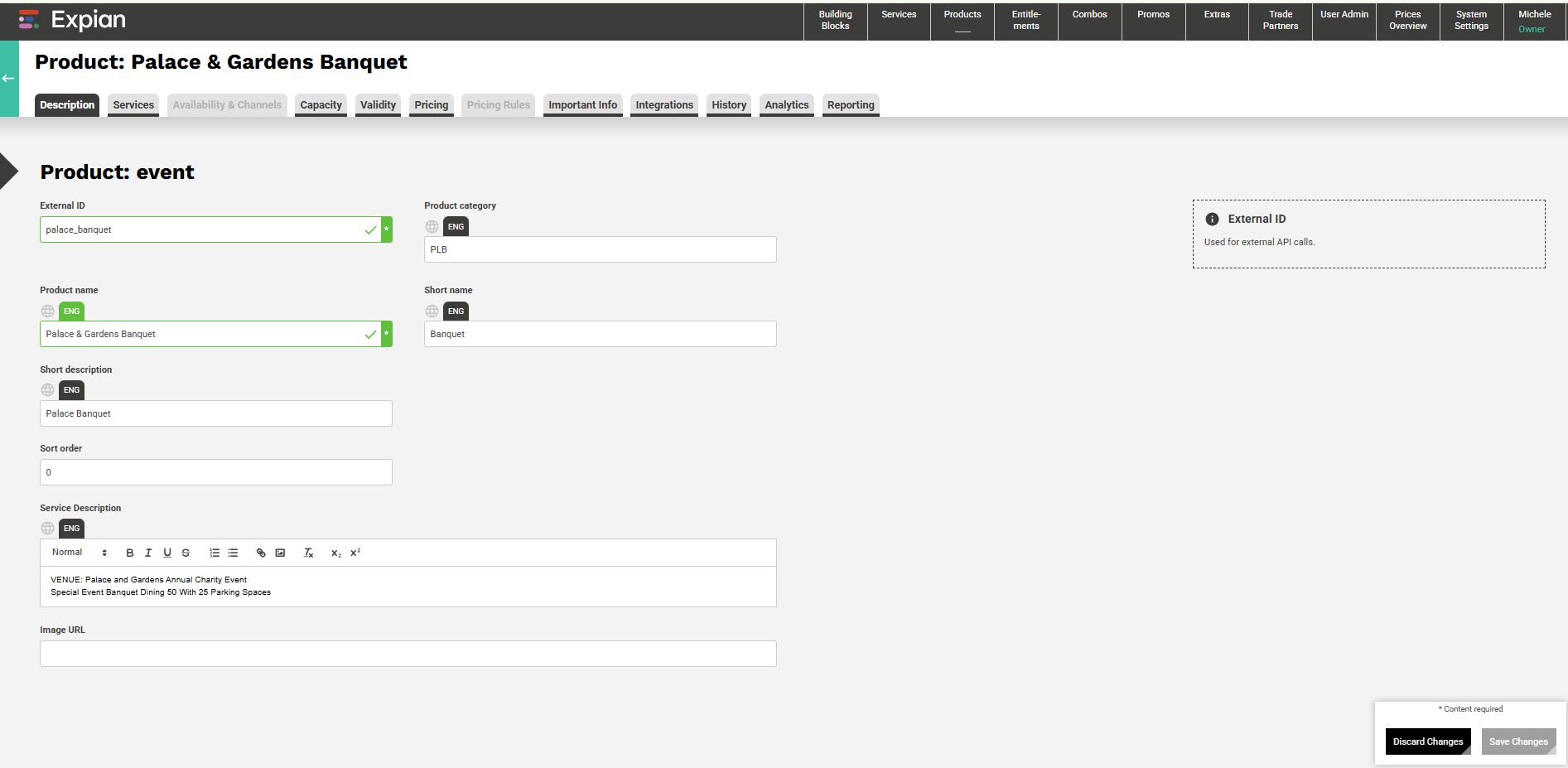
Use this tab to set the basic details of your product, its name, ID, and how it appears to customers.
- External ID: A unique reference used by external integrations or APIs.
- Product Name: The display name for this product (e.g., Hampton Court Palace Admission).
- Product Category: Optional internal label for grouping or reporting.
- Short Name / Label: A shortened version for systems or tight UI displays.
- Short Description: Optional summary visible in lists or booking widgets.
- Sort Order: Controls the display order in lists (lower numbers appear higher).
- Service Description: The longer description shown during the booking flow.
- Image URL: Add a hosted image for use in online displays or booking widgets.
NOTE: you cannot yet Save this until Pricing is complete.
Services Tab
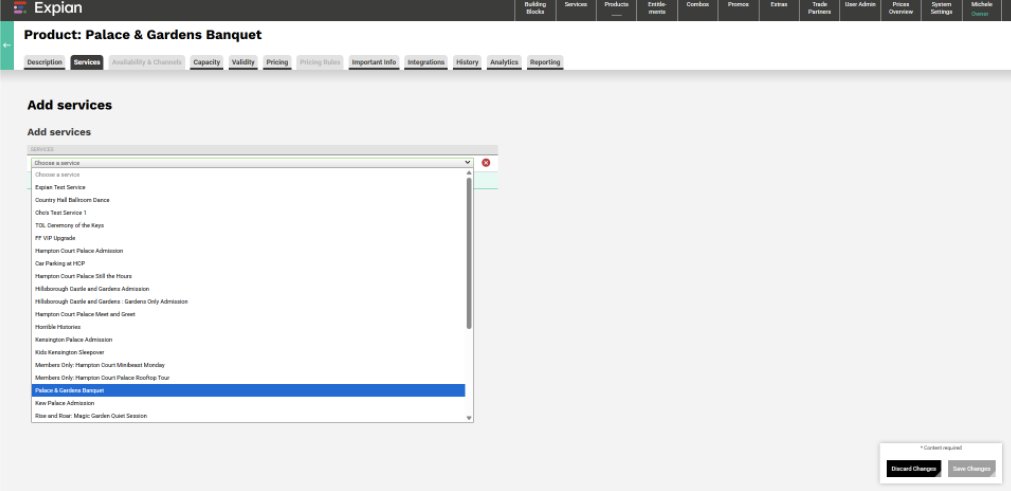
This tab connects your product to one or more Services.
A Service defines the schedule or timetable the product will draw from.
- Select from existing Services (for example, Kensington Palace Admission).
- You can add multiple services if the product should apply to more than one.
- Use the Add a new record button to include another service.
- Removing a service will unlink it from this product, always check dependencies before saving.
Availability & Channels Tab
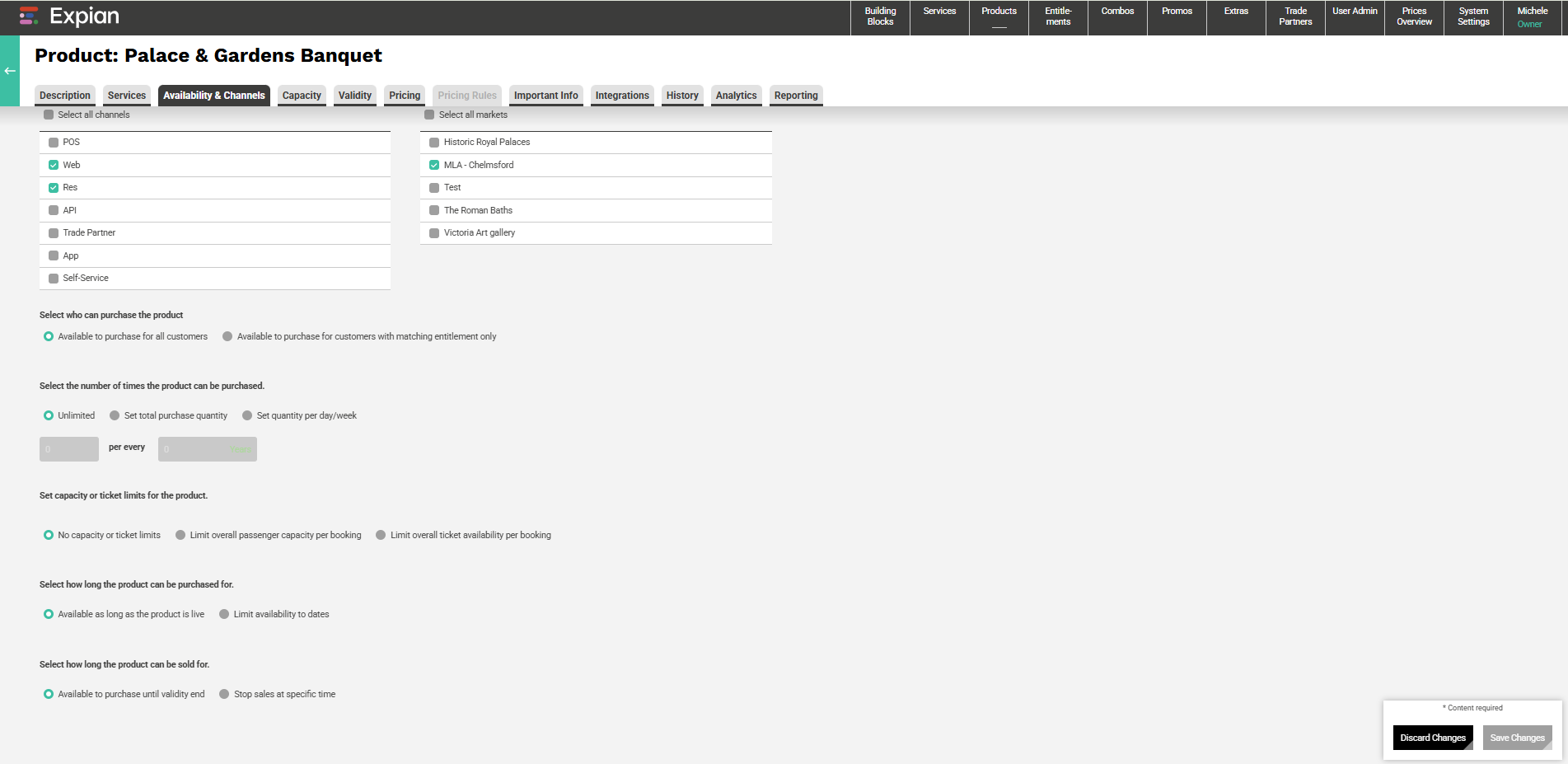
This tab controls where, who, and how often the product can be purchased.
Sales Channels & Markets
- Tick the channels where this product can be sold (e.g., Web, POS, Reservations, Trade Partner).
- Optionally, restrict to specific Markets if configured (e.g., Historic Royal Palaces, Test).
Purchase Permissions
- Choose whether the product is:
- Available to all customers, or
- Restricted to customers with a matching entitlement.
Purchase Quantity & Limits
- Define how many times the product can be purchased per customer or booking.
- Unlimited: no restrictions.
- Set total purchase quantity: cap the number available overall.
- Set quantity per day/week: repeat limits over time.
Capacity or Ticket Limits
- Choose whether to:
- Apply no capacity/ticket limits, or
- Restrict passenger/ticket capacity per booking.
Product Sale Period
- Control how long the product remains on sale:
- Available as long as live,
- Limit availability to dates, or
- Stop sales at a specific time.
Capacity Tab
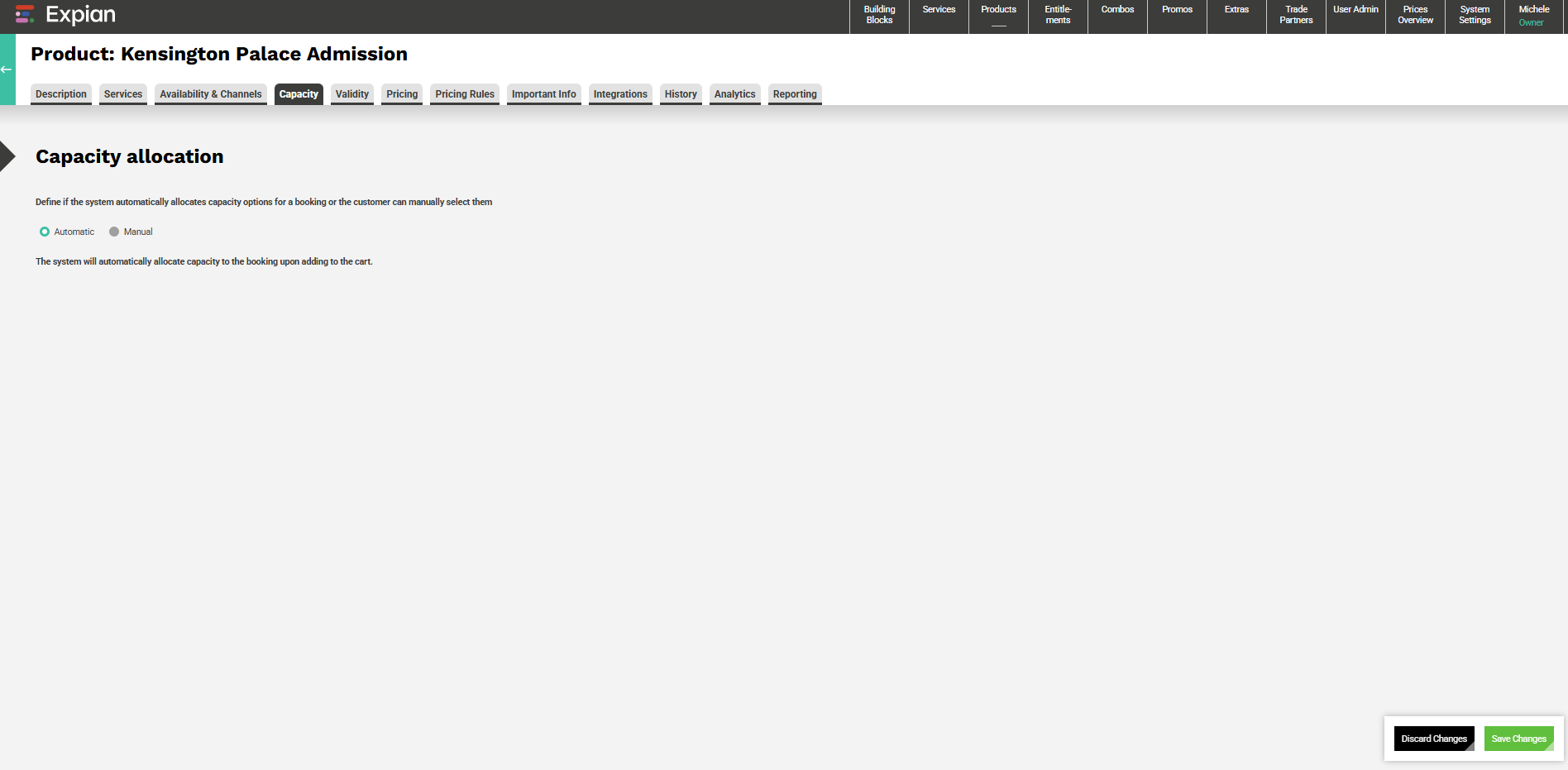
Define how the system allocates available capacity when a booking is made.
- Automatic: The system assigns capacity automatically when the item is added to the cart.
- Manual: Staff or customers must select from available capacity options before checkout.
Automatic allocation is typical for standard admissions, while manual allocation suits venues with multiple entry points or sections.
Validity Tab
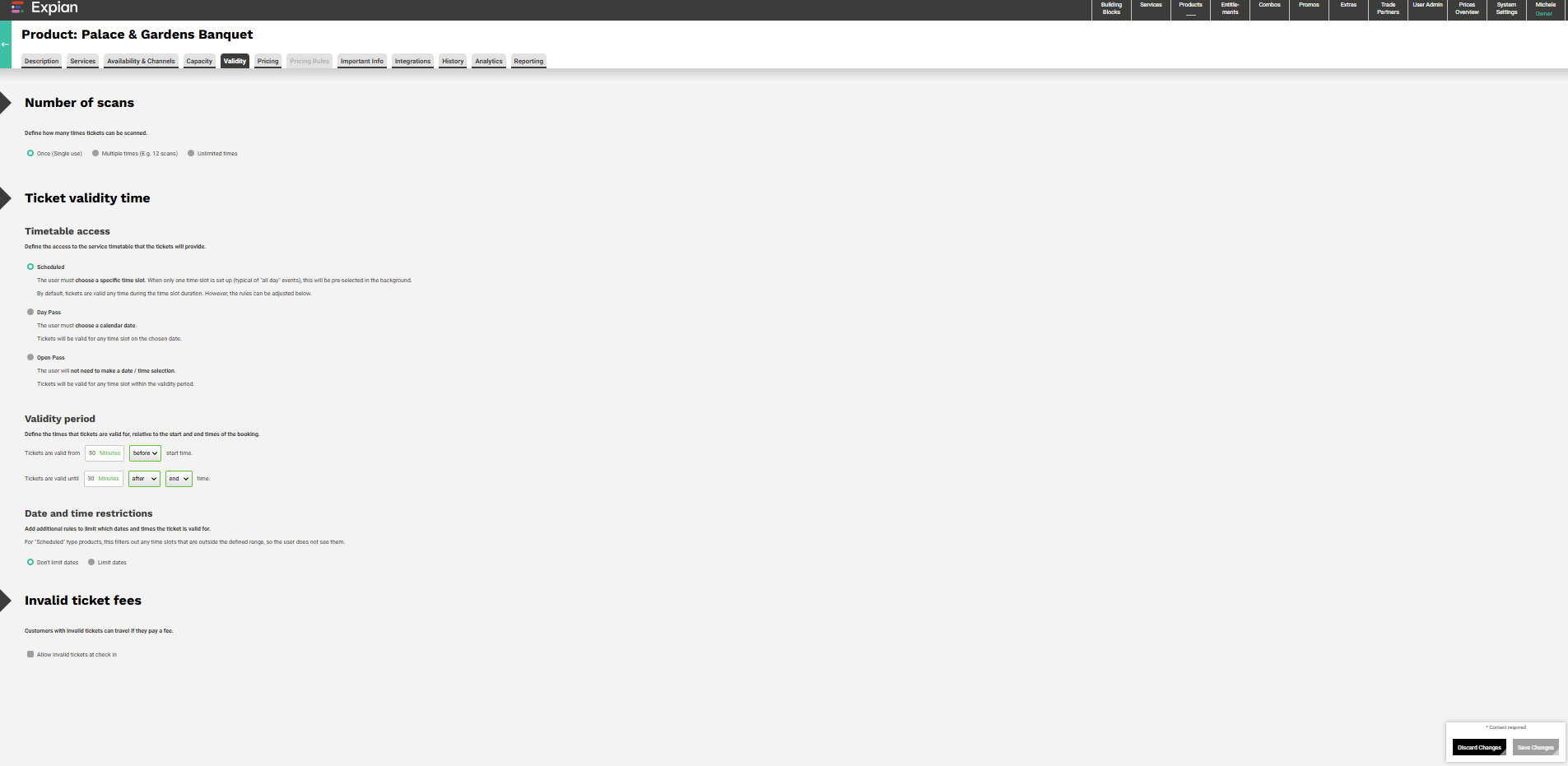
This tab defines how and when a ticket can be used after purchase.
Number of Scans
- Set the number of times a ticket can be scanned for entry:
- Once: single use only.
- Multiple times: specify the number of scans allowed.
- Unlimited: no scan restrictions.
Timetable Access
Defines how tickets relate to service timetables:
- Scheduled: The customer must book a specific time slot (default for time-based events).
- Day Pass: Valid for any time on the chosen date.
- Open Pass: Valid for any time within the overall validity period, with no date/time selection required.
Validity Period
- Controls when tickets remain valid in relation to the start and end of the booking:
- e.g., valid 3 days before and 1 day after the selected date.
Date and Time Restrictions
- Add optional rules for when the ticket is usable (specific days, seasons, or blackout dates).
Invalid Ticket Fees
- Optionally apply a fee when a customer presents an expired or invalid ticket but is still allowed to enter.
Pricing Tab
The Pricing Tab defines how much the product costs, what fees or taxes apply, and any additional financial rules such as donations, deposits, or VAT.
Prices can be configured for different capacity options, service groups, or sales channels.
The Pricing Tab defines how much the product costs, what fees or taxes apply, and any additional financial rules such as donations, deposits, or VAT.
Prices can be configured for different capacity options, service groups, or sales channels.
Product Default Price
Use the dropdown menu to select the Pricing Group.
Pricing groups represent sets of services or capacities that share similar pricing structures, for example:
- General Admission
- Banquet Ticket
- Parking or Transport Pass
Once a group is selected, the ticket type record(s) will appear.

- For Sale: Tick box if you want this ticket type available for sale at this event.
- Price: add the ticket price for each ticket type
- Price: add the ticket price for each ticket type

Price per Capacity Option
This section lets you assign specific prices to each capacity type linked to the service or venue your product draws from.
Essentially, you’re telling the system:
'When a booking consumes this capacity, charge this price?'
A Capacity Option represents a physical or logical space available to sell, for example, as shown in the above screenshot:
- Car Parking – a parking bay, vehicle space, or permit.
- Event – an area, seat, or visitor slot for the main attraction itself.
If your product (e.g. Palace & Gardens Banquet) is linked to multiple capacity options, you’ll see each one here, allowing you to price them independently.
In this setup, the 'Events capacity represents the main event space (e.g. the banquet hall).
It isn’t directly priced here because the event admission price is handled elsewhere, either as part of the Product Default Price or through another linked capacity or combo product.
The system still needs to 'see' it, though, to manage capacity usage behind the scenes.
Donations

Choose whether donations apply to this product.
The Donations section allows you to add optional charitable contributions to each ticket type sold for a Product.
This is particularly useful for attractions, heritage sites, or events that support a charitable organisation.
Options available:
- No donations: No donation options are offered at checkout.
- Optional donation per ticket: Adds a donation value to each ticket type. Customers can choose whether to include it.
When Optional donation per ticket is selected, each ticket type linked to the Product appears in a list, where you can:
- Enter the donation amount per ticket.
- Mark whether each ticket is Eligible for Gift Aid (for UK charities).
- Choose between:
- Donation only: The full amount is treated as a charitable donation.
- Donation and ticket price: Combines the ticket price and the donation into one purchase option (commonly used for Gift Aid tickets).
With the above screenshot configuration:
- The system displays a Gift Aid–eligible donation at checkout.
- The donation amount appears as a separate, optional add-on line item where supported by the POS or Web interface.
- The donation can be reported separately in sales and Gift Aid reports.
Note: Only donations marked as Gift Aid eligible will be included in Gift Aid reporting.
The optional donation field supports both fixed and £0.00 values if a donation is not required for specific ticket types.
- No donation options available, standard sale.
- Optional donation available, customer can add a donation during checkout.
- Mandatory donation included, donation is automatically added to the total.
Booking Fees

Booking Fees are configured within each Product rather than at a global or market level.
They define an additional charge applied either per booking or per ticket, depending on how the fee is set up.
- Booking fees are created and managed in the Pricing tab of the Product record.
- The fee amount entered here applies to all Markets and Channels selected in the Availability & Channels tab for this Product.
- There is no central setup screen for booking fees, each Product manages its own configuration.
- If different booking fees are required for different Markets, duplicate the Product (or Pricing Group) and assign each version to the relevant Market.
- Booking fees automatically flow through to POS, Web, and API once the Product is published and linked to its respective Service and Market.
Example:
A single Product may have a £2.00 per ticket booking fee for general web sales, but a duplicate version can be created for the Trade Partner Market with no fee applied.
Note: Booking Fees are calculated in the total price presented to the customer and displayed as a separate line item where supported by the POS or Web interface.
Booking fees can be applied per booking or per ticket.
You can also choose whether these are visible to the customer during checkout.
- Per booking, one fixed fee per order.
- Per ticket, added for each ticket purchased.
- Include in total, hides the fee from the breakdown but keeps it within the overall price.
Discounts and Codes IMAGE
If discounts or voucher codes are enabled in the system, they can be applied automatically here by linking them to the selected pricing group.
Deposits
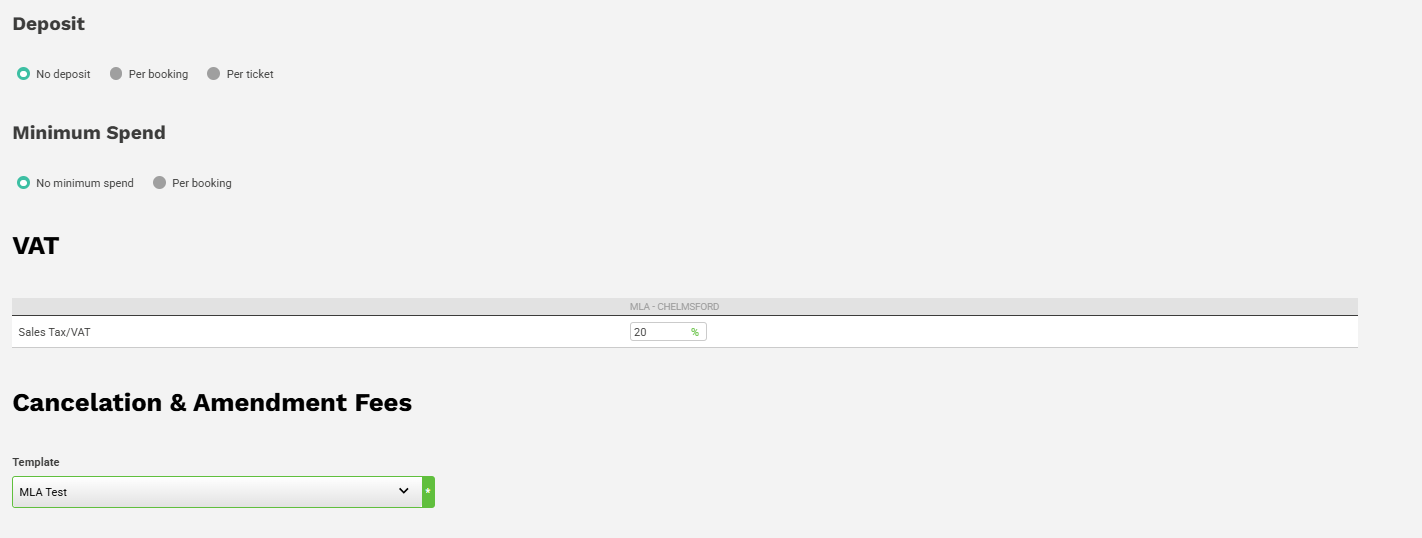
If the product requires a partial payment upfront:
- Select Percentage or Fixed Amount.
- Enter the required amount or percentage.
- This setting is typically used for large-value products such as group bookings, events, or transport charters.
Minimum Spend
Define the lowest total value that must be met before checkout can proceed.
Useful for packages or add-ons that must meet a minimum order value.
VAT (Tax)
Select the appropriate VAT rate from the dropdown menu.
This ensures accurate reporting and tax calculation during checkout.
Cancellation & Amendment Fees
If configured, these fees apply when a booking is changed or cancelled after purchase.
Select the applicable rule from the dropdown (e.g., Standard Cancellation Policy).
Fees and refund policies are managed separately within the Terms and Amendment Fees section under Building Blocks.
Finally the Save button becomes active. You can save and exit or continue to completing the rest of the product tabs
Pricing Rules Tab
The Pricing Rules tab is used to apply conditional price adjustments based on specific time periods, days, or ticket types. This is particularly useful for creating seasonal pricing, weekend rates, or special event promotions without manually changing the base product prices.

Select Add a new rule to create a pricing adjustment.

A new record opens, where you can enter a Rule Name and define the parameters that determine when and how the rule applies.
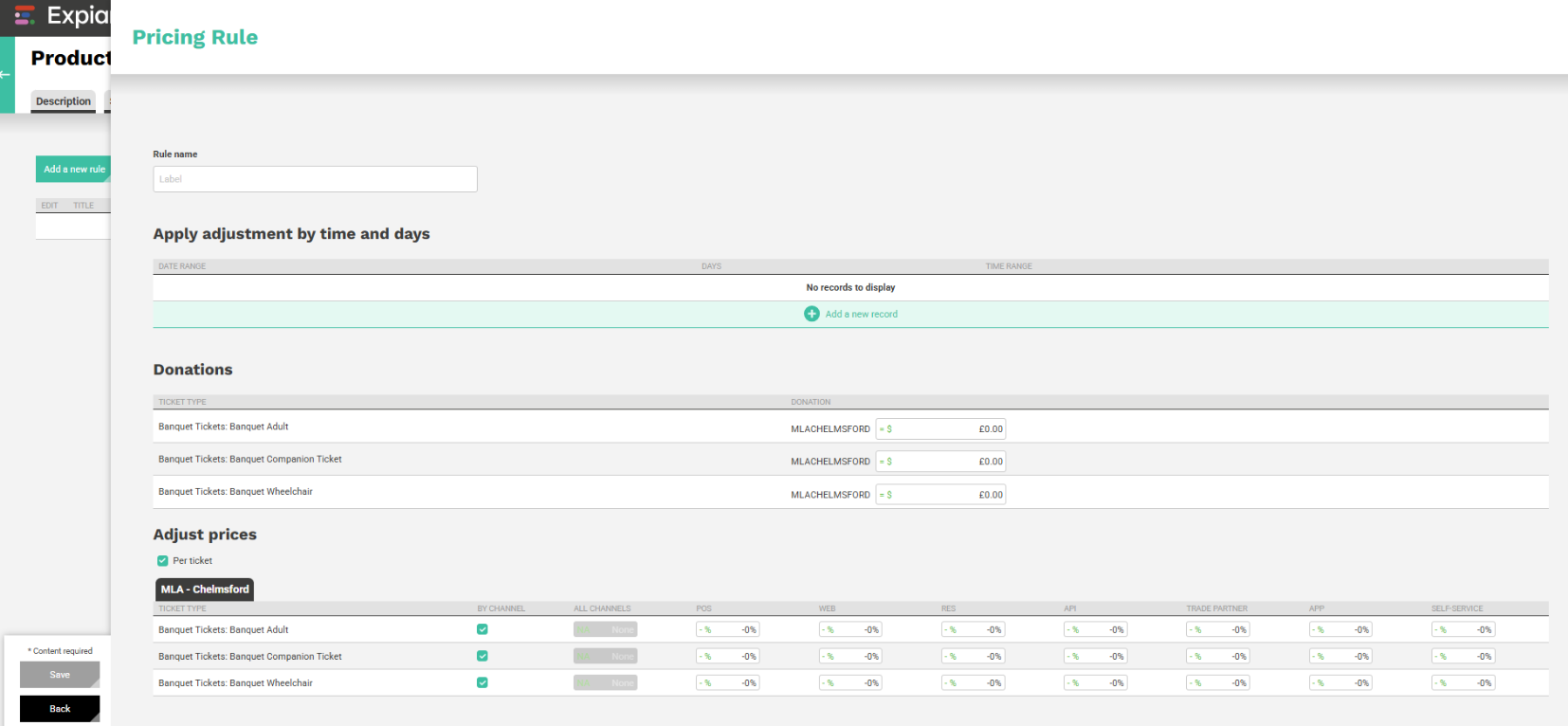
Under Apply adjustment by time and days, click Add a new record to specify a date range, select the days of the week, and optionally define a time range. This allows rules to be applied only on certain days or within specific times, for example, weekday discounts or evening surcharges. Once added, the new record appears above in the list of active adjustments.
If donations are enabled for the product, the Donations section appears, allowing adjustments to be applied per ticket type (for example, Adult, Companion, or Wheelchair tickets). Below, the Adjust Prices section defines price modifications for each channel (POS, Web, API, etc.), giving you control over how prices differ between sales channels.
Pricing rules can be edited, layered, or duplicated for different periods or promotional campaigns.
Pricing Summary
The Pricing and Pricing Rules tabs work together to give full flexibility over how products are priced and managed across time periods, customer types, and sales channels. While the Pricing tab defines your standard rates and any donation or tax options, the Pricing Rules tab allows for refined adjustments, ensuring prices remain dynamic and aligned with operational or promotional requirements.
Information Tab
The Important Info tab allows you to provide essential information that appears on customer confirmations and tickets. This ensures that key travel, event, or safety details are communicated at the point of booking. Keep the message concise, under 200 characters is recommended, and use this field for any customer-facing notes such as ‘Please arrive 30 minutes before departure’ or ‘Bring proof of purchase.’
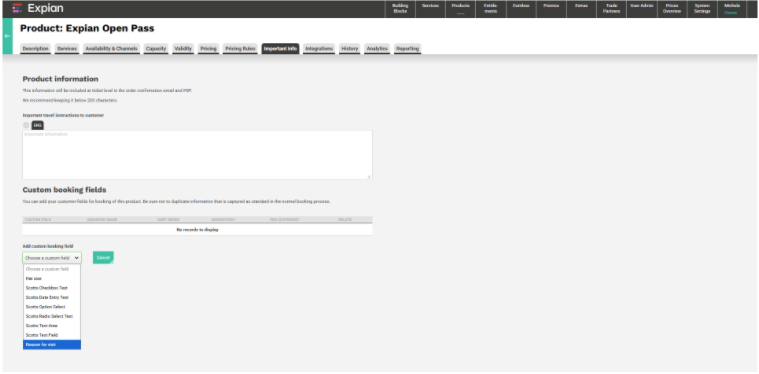
Custom Booking Fields
Custom booking fields capture additional information required during checkout, such as dietary requirements, accessibility needs, or group names. These fields are selected from predefined options created in System Settings → Custom Fields, ensuring consistency across products.
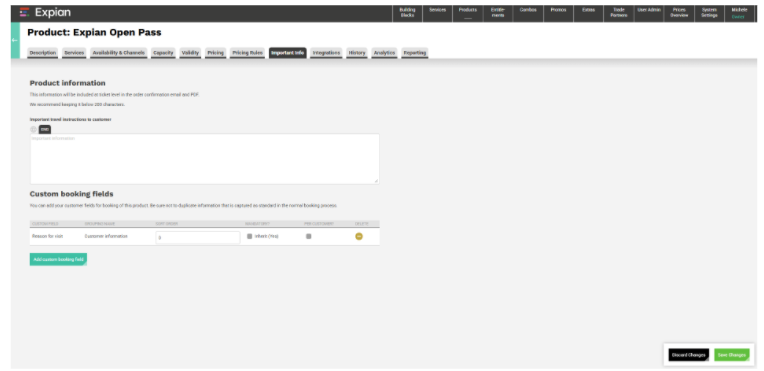
Click Add custom booking field to select a field from the dropdown list, define whether it is Mandatory, and specify if the field should apply per booking or per customer.
Once added, the field will appear in the booking journey for the selected product.
Important Info Summary
The Important Info tab ensures all customer communications and booking data are complete and consistent. By combining concise instructions with tailored custom booking fields, this section helps maintain clarity for both customers and operational teams before moving into product integrations.
It displays key customer-facing information on tickets, emails, and booking confirmations.
Examples include: '
'Please arrive 15 minutes before your booked time.' or
'Your ticket is valid for one day only.'
Keep text concise (under 200 characters) to ensure readability on mobile devices and printed tickets.
Multilingual fields can be added where necessary for international visitors.
Integrations Tab
Used to configure links between Expian and connected systems such as payment providers, CRM platforms, or reseller APIs.
This ensures admission products are mapped correctly for reporting, revenue recognition, and external ticket sales.
If no external integrations exist, this tab can be left blank.
Analytics Tab
Provides the ability to tag admission products for tracking through analytics platforms such as Google Tag Manager or internal BI dashboards.
Tags allow data teams to measure sales performance, monitor conversion, and track marketing campaign success.
History Tab
Shows a full record of changes made to the product, including who made the edit and when.
Each saved version can be reviewed, restored, or republished, supporting clear governance and audit trails.
Reporting Tab
The Reporting Tab allows you to assign accounting or analytical codes to each Admission Product, enabling accurate financial reconciliation and consistent reporting across systems.
These codes ensure that revenue, attendance, and product performance can be accurately tracked across departments, sites, and sales channels.
Fields include:
- Reporting Code 1 – typically used for the primary revenue or cost centre (e.g. Admissions, General Entry, Gift Aid Eligible).
- Reporting Code 2 – optional secondary classification, used for sub-categories such as Site, Attraction Type, or Seasonal Campaign.
Best Practices
- Use clear, descriptive product names that match the visitor experience (e.g. Hampton Court Palace Admission).
- Link the product to the correct Service and ensure capacity aligns with operational limits.
- Keep the Service Description short, informative, and customer-focused, avoid internal or technical wording.
- Always test new pricing configurations before publishing to ensure accuracy across all markets and channels.
- Use Scheduled validity for time-based entry and Day Pass for open-day or flexible admission types.
- If capacity differs by venue area (e.g. Gardens vs. Palace), use manual capacity selection for better control.
- Regularly review Availability & Channels settings to confirm that only relevant sales channels remain active.
- Apply Pricing Rules instead of manually editing base prices to simplify seasonal or promotional adjustments.
- Add Important Info (e.g. arrival guidance or accessibility notes) to confirmations for improved visitor clarity.
- Keep product images current and representative of the experience, they appear in customer-facing views.
Summary
Admissions Products form the foundation of attraction ticketing, connecting venue capacity, pricing, and visitor access in a single configuration.
They enable teams to manage how and where admission tickets are sold, ensure accurate capacity tracking, and provide visitors with clear and consistent booking information.
When configured effectively, Admissions Products create a seamless visitor journey, from online purchase through on-site entry, while maintaining operational control and supporting real-time reporting across all sales channels.
Create Events → Product
Overview
Event Products are used to configure timed or scheduled experiences such as performances, workshops, or special banquets.
They link directly to specific services with defined start and end times, ensuring that ticket sales, capacity, and pricing remain aligned with each scheduled occurrence.
Creating Events Products correctly ensures that customers can easily book timed experiences while operations maintain full visibility of attendance levels and scheduling accuracy.
This alignment between ticketing, service management, and visitor experience is key to running reliable, repeatable, and high-quality events.
Description Tab
Defines the core details of the event and how it is displayed to both customers and staff.
Fields include:
- External ID: A unique system reference used for API calls or integrations (e.g. palace_banquet).
- Product Name: The full name displayed to customers (e.g. Palace & Gardens Banquet).
- Product Category: Used internally for classification (e.g. PLB).
- Short Name: Abbreviated version used in POS or short UI displays (e.g. Banquet).
- Short Description: Optional summary for quick reference (e.g. Palace Banquet).
- Sort Order: Determines where the product appears in listings (lower numbers appear first).
- Service Description: A longer, guest-facing description shown during booking.
- Example: ‘Palace and Gardens Annual Charity Banquet - a special evening dining experience with 50 parking spaces available.’
- Image URL: Upload an image for display on web or app channels.
- Note: Products cannot be saved until the pricing tab is completed.
Services Tab
Connects the product to its associated Service (the operational schedule).
Each Event Product must be linked to at least one Service defining its start and end times.
- Select the appropriate Service (e.g. Palace & Gardens Banquet).
- You can add multiple services if the event spans multiple locations or time slots.
- Use the Add a new record button to create additional entries.
Tip: Removing a Service will unlink it from the Product, which may impact active bookings, always confirm dependencies before saving.
Availability & Channels Tab
Controls where, who, and how the product can be purchased.
Sales Channels & Markets
Select the channels where this event should be sold, typically Web, Reservations, and POS.
Restrict markets (e.g. Historic Royal Palaces or MLA Chelmsford) to manage visibility and pricing by venue or organisation.
Purchase Permissions
- Available to all customers, or
- Restricted to those with a specific entitlement (e.g. Members Only events).
Purchase Quantity & Limits
Define purchase behaviour per booking or customer:
- Unlimited: no restriction.
- Set total purchase quantity: cap total sales across the event.
- Set quantity per day/week: apply rolling limits for recurring sessions.
Capacity & Ticket Limits
- No limits: all available capacity is pooled.
- Limit passenger/ticket capacity per booking: to manage individual order sizes.
Sale Period
Determine how long the event remains available for sale:
- Available while live,
- Limit to specific dates, or
- Stop sales automatically at a defined time.
Capacity Tab
Defines how capacity is allocated when bookings are made.
- Automatic: The system automatically assigns capacity when the event is booked — recommended for single-space events.
- Manual: Staff or customers must select from defined capacity options before checkout — useful for events with zones or seating options.
Example: A banquet may have “Dining Hall” and “Garden Pavilion” options, each with separate capacity management.
Validity Tab
Determines when and how event tickets can be used.
Number of Scans
- Once: single entry per ticket (typical for one-off events).
- Multiple times: define the number of scans allowed (useful for multi-session access).
- Unlimited: unrestricted use within the event period.
Timetable Access
- Scheduled: The customer must choose a specific time slot (default for events).
- Day Pass: Valid any time on the chosen date.
- Open Pass: Valid any time within the overall validity period.
Validity Period
Controls how long tickets are valid around the event time:
- Example: Valid 30 minutes before and 30 minutes after the event start time.
Date & Time Restrictions
Apply additional filters for ticket usability, for example, limit tickets to specific days of the week or event series.
Invalid Ticket Fees
Enable a charge when customers arrive late or after expiry but are still permitted entry (optional).
Pricing Tab
Defines the ticket price, donations, fees, VAT, and refund rules.
Product Default Price
Select the relevant Pricing Group (e.g. Banquet Ticket).
Each ticket type appears for configuration, for example:
- Banquet Adult Ticket
- Banquet Companion Ticket
- Banquet Wheelchair Ticket
Price per Capacity Option
Allows different prices per capacity area (e.g. Car Parking vs. Event Space).
You can manage per-location pricing or specify where different fees apply.
Donations
- No donations: no contribution offered.
- Optional donation per ticket: allows customers to add a charitable donation (Gift Aid eligible if selected).
- Donation and ticket price combined: includes a mandatory contribution.
Booking Fees
Set fixed fees either per ticket or per booking.
- Example: £2.00 per ticket added for online sales.
- Choose whether the fee is shown separately or included in the total.
Deposits & Minimum Spend
- Add partial payments for high-value events (e.g. 20% deposit).
- Define minimum order value if required.
VAT (Tax)
Select the applicable VAT rate (e.g. Sales Tax/VAT UK).
Cancellation & Amendment Fees
Choose a predefined policy (e.g. MLA – Standard Terms).
Once pricing is completed, the Save button becomes active.
Pricing Rules Tab
Enables automated adjustments to event pricing based on time, date, or channel.
Example uses:
- Weekend or holiday surcharges.
- Special discounts for members or early booking.
Each rule includes:
- Rule Name: For reference (e.g. banquet_access_rule).
- Date Range: Specify active dates (e.g. 29 November 2025).
- Days of Week: Choose which days the rule applies.
- Adjust Prices: Apply increases or reductions across selected channels and ticket types.
Example: +£5.00 for POS and Trade Partner sales on Saturdays.
Important Info Tab
Used to communicate essential information on tickets and confirmations.
- Keep text brief and informative (under 200 characters).
- Example: ‘Please select one of the options if you require a specific meal.’
Custom Booking Fields
Capture additional details such as dietary requirements or meal selections.
- Choose from predefined custom fields in System Settings → Custom Fields.
- Mark as Mandatory if required per booking or per customer.
Integrations Tab
Used to configure links between Expian and connected systems such as payment providers, CRM platforms, or reseller APIs.
This ensures admission products are mapped correctly for reporting, revenue recognition, and external ticket sales.
If no external integrations exist, this tab can be left blank.
Analytics Tab
Provides the ability to tag admission products for tracking through analytics platforms such as Google Tag Manager or internal BI dashboards.
Tags allow data teams to measure sales performance, monitor conversion, and track marketing campaign success.
History Tab
Shows a full record of changes made to the product, including who made the edit and when.
Each saved version can be reviewed, restored, or republished, supporting clear governance and audit trails.
Reporting Tab
The Reporting Tab allows you to categorise sales data for each Event Product, supporting financial reconciliation, performance tracking, and business intelligence reporting.
It provides two free-text fields, Reporting Code 1 and Reporting Code 2, which can be used to align Event sales with accounting, departmental, or operational reporting structures.
Best Practices
- Use clear, descriptive names that align with marketing and event listings.
- Link to the correct Service and ensure its schedule matches the event’s advertised times.
- Keep descriptions concise but engaging, focus on what guests can expect.
- Always test pricing and capacity settings before publishing.
- Use Automatic capacity for simple events; switch to Manual only when necessary.
- Add Custom Fields early to capture dietary or accessibility needs at checkout.
- Review Pricing Rules regularly to prevent overlap with existing promotions.
- Ensure VAT and booking fees reflect contractual or legal requirements.
- Include clear arrival or meal selection information under Important Info.
Summary
Event Products bring together scheduling, pricing, and capacity to create reliable and bookable experiences for guests.
They allow teams to manage performances, workshops, and special occasions efficiently while providing customers with a seamless and transparent booking process.
When configured correctly, Events Products support accurate reporting, flexible pricing, and strong customer communication, ensuring that every event runs smoothly from booking to attendance.
Create Journeys → Product
Journey Products define how travel-based experiences, such as ferry crossings, coach routes, or multi-leg transfers, are structured, priced, and sold across all channels.
They combine operational elements (services, routes, and capacity) with commercial configuration (pricing, validity, and rules).
Setting these up correctly ensures that customer bookings, ticket validation, and internal reporting are consistent and accurate.
Well-configured Journey Products maintain operational reliability, prevent overbooking, and align physical capacity with real-time sales.
This integration of service management and sales logic keeps travel operations efficient while delivering a simple, transparent customer journey across all booking channels.
Description Tab
Defines the product’s core details and how it is displayed to customers and staff.
Fields include:
- External ID: Unique system reference for API calls (e.g. lc-standard).
- Product Name: The name displayed to users (e.g. Standard).
- Product Category: Optional category label (e.g. Journeys).
- Short Name: Used on POS or short-display contexts.
- Short Description: Brief summary shown to users (optional).
- Sort Order: Defines display order in lists.
- Searchable: Determines whether the product appears in the normal booking flow. Non-searchable products can still be booked via API.
- Service Description: Key information about the journey, typically shown during booking.
- Example: 'Our best value ticket – book and travel on the day (subject to availability). Amendments or changes to your booking will incur a fee. Non-refundable.'
- Image URL: Optional image reference used for UI or partner integrations.
Tip: A product cannot be saved until pricing information has been added.
Services & Routes Tab
This tab links the journey product to the services that operate it and defines which routes can be sold.
Add Services:
Select the routes or travel segments that make up this product (e.g. Cairnryan–Larne and Larne–Cairnryan).
Select Direct Routes to Sell:
Indicates which journeys can be sold as a direct route.
- Example: Cairnryan → Larne and Larne → Cairnryan as Sell/Reverse routes.
Define Routes that Require a Transfer:
Allows multi-leg routes to be created by adding stops or connections.
- Example: 'Add more legs to make this route valid' – useful for connecting journeys such as Train + Ferry or Bus + Cruise.
Correct configuration ensures the system recognises both direct and transfer-based routes and manages capacity accordingly.
Availability & Channels Tab
Determines where, when, and to whom a journey product is available.
Sales Channels & Markets:
Select where this product can be purchased (e.g. POS, Web, Reservations, API, Trade Partner, App, or Self-Service).
Markets can also be restricted (e.g. UK or EU).
Customer Eligibility:
- Available to all customers, or
- Only for those with specific entitlements (e.g. members or partners).
Purchase Quantity & Limits:
Define purchase controls:
- Unlimited: no restriction.
- Set total quantity: limit total sales.
- Set per day/week: limit per defined period.
Capacity Limits: Set passenger or ticket limits to prevent overselling on capacity-controlled routes.
Sale Period: Control when the product is available for sale:
- Available continuously, or
- Limited to set start and end dates.
This ensures the journey appears only where relevant and prevents accidental sales outside operational periods.
Validity Tab
Specifies when a journey ticket can be scanned or used.
Number of Scans:
- Once: single boarding or use.
- Multiple Times: e.g. for multi-stop or flexible passes.
- Unlimited: unrestricted travel during the validity window.
Timetable Access:
- Scheduled: passenger must choose a departure time (e.g. 10:00 Ferry).
- Day Pass: valid for all times on chosen date.
- Open Pass: valid for travel within a set date range, no time slot required.
Validity Period: Set the date range a ticket remains valid (e.g. valid from 3 days before travel until 1 day after).
Date & Time Restrictions: Restrict validity to certain days or times (e.g. weekdays only).
Invalid Ticket Fees: Allow travel with an expired or mismatched ticket for an additional charge if applicable.
Pricing Tab
Defines fares, vehicle pricing, and supplementary charges.
Set Price per Ticket Type:
Enter a price for each passenger and vehicle category, e.g.:
- Adult (16–59) – £29.00
- Child (4–15) – £13.00
- Car – £105.00
- Motorcycle – £20.00
Prices can be defined by market (e.g. UK or EU) and channel (POS, Web, API, etc.).
Terms & Amendment Fees:
Select the applicable cancellation or change terms (e.g. LC – Standard Terms).
Price per Capacity Option:
Apply additional charges per capacity unit (e.g. Lane Metre, Height, or Vehicle Type).
- Low Vehicle Lane Metre + £10.00
- Motorhome + £7.50
- Trailer/Caravan + £10.00
Advanced Settings:
- Set VAT / Sales Tax percentage.
- Include or exclude donations.
- Add booking or deposit fees.
- Set minimum or maximum booking spend.
This setup ensures pricing reflects the complexity of vehicle and passenger combinations.
Capacity Tiers Tab
Capacity tiers group ticket types with similar attributes, enabling dynamic pricing or upsell logic.
For example, Passenger Low, Passenger High, and Passenger Super High can each carry a different priority or price level.
Use cases include:
- Allocating passenger types to distinct capacity levels.
- Managing discounts or upsells (e.g. 'Upgrade to Premium Seat').
- Linking capacity tiers to Combo Discounts or dynamic pricing groups.
Each ticket type can be assigned a capacity tier or left as 'No Capacity Tier' if not required.
Pricing Rules Tab
Pricing Rules allow automated price adjustments based on dates, times, or conditions.
Rule Example:
'Apply +10% during July weekends' or 'Reduce by £5 for midweek departures.'
Configuration options include:
- Rule Name: define clear labels for management (e.g. Default £134 (+£15) LACR).
- Date & Time Range: set specific validity periods.
- Days of Week: apply to one or more weekdays.
- Adjust Per Route: apply separate rules for outbound/inbound or per channel.
Rules can be layered to reflect seasonal pricing, promotions, or operational changes.
Important Info Tab
Used to add passenger-facing travel information that appears on confirmation emails and PDFs.
Example:
'Tickets are valid for the date and time shown only. By using our services, you agree to our Terms & Conditions.'
You can include multilingual text and assign it per route (e.g. Cairnryan → Larne, Larne → Cairnryan).
Keep messages under 200 characters for best results.
Integrations Tab
Used to define values required by third-party systems such as the FerryGateway API.
Example Field:
- Fare Type: Standard / Promotional / Group Rate
Correct configuration ensures external booking engines, partners, or APIs can interpret and sell the product accurately.
Analytics Tab
Allows tracking of sales and engagement performance via analytics platforms (e.g. Google Tag Manager).
Fields:
- Analytics Tag: unique identifier for tracking the product.
- Analytics Item Name: optional override for the analytics system.
Adding analytics tags enables insight into how customers interact with specific routes or ticket types.
History Tab
Displays all product edits, user actions, and publication history for audit purposes.
You can view, republish, or restore previous versions directly from this tab.
Best Practices
- Clearly label each journey and route to prevent confusion between outbound and inbound services.
- Test capacity and pricing rules thoroughly before publishing.
- Use meaningful naming conventions (e.g. Standard Return – Cairnryan to Larne).
- Keep Service Descriptions concise and user-friendly.
- Double-check capacity tiers and lane metre pricing for accuracy.
- Always test new pricing rules in a staging environment before deploying live.
Summary
Journey Products connect services, routes, pricing, and capacity into a single, consistent booking framework.
They enable transport providers to control complex, multi-leg operations within one configuration, ensuring smooth sales across POS, web, and API channels.
Configured correctly, Journey Products simplify management, improve customer clarity, and provide the flexibility needed for seasonal, dynamic, or route-based pricing models.
Was this article helpful?
That’s Great!
Thank you for your feedback
Sorry! We couldn't be helpful
Thank you for your feedback
Feedback sent
We appreciate your effort and will try to fix the article