Overview
The User Administration section manages all system users, their roles, and their access rights.
From here, administrators can create new users, update existing accounts, reset passwords, and control which areas of the system each person can access.
Proper configuration of user permissions is essential to maintaining system security, ensuring compliance, and supporting smooth operational workflows. By assigning users the correct roles and limiting access to only what’s necessary, organisations can reduce the risk of data misuse, improve accountability, and streamline collaboration across teams.
Effective user administration underpins the security and reliability of the Expian platform. It ensures that sensitive operational data, including bookings, payments, and customer details, is only accessible to the right people at the right time. This alignment between permissions and responsibilities strengthens governance, protects data integrity, and ensures the platform operates safely and efficiently across all teams.
Why It Matters
User Administration safeguards your organisation’s data and workflows.
Configuring roles and permissions correctly ensures that:
- Sensitive data remains secure: only authorised users can view or edit key information.
- Operational accountability is maintained: actions are traceable to individual logins.
- Compliance standards are met: role-based access supports data protection and audit readiness.
- Efficiency improves: users see only the tools and modules relevant to their work.
- Cross-department collaboration stays safe and structured: roles align with responsibilities across Admin, Reservations, POS, and Scanner operations.
When managed correctly, User Administration ensures your platform operates securely, transparently, and efficiently across all departments.
Configuration / How to Use
Create New User
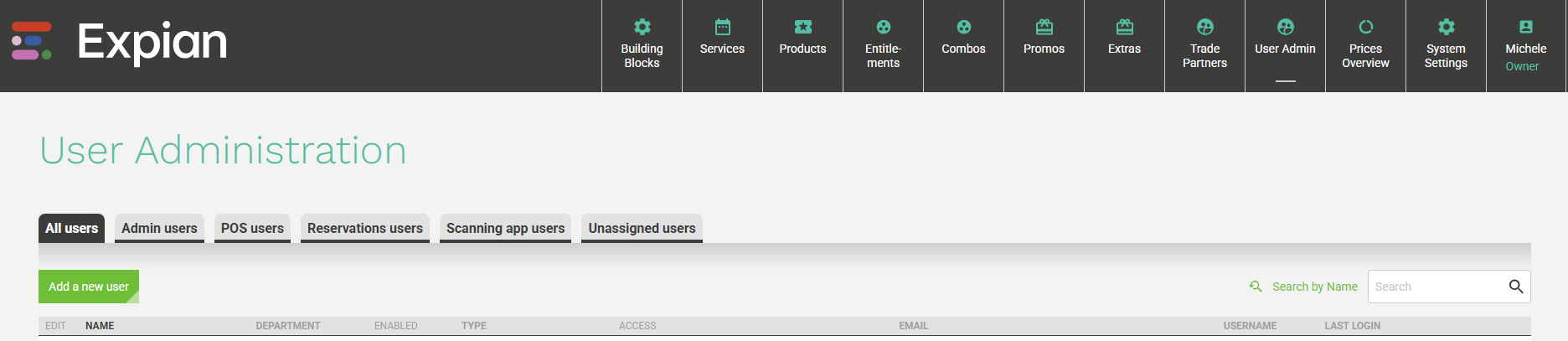
Click on the User Adminin the black navigation bar.
Select Add a new user to open the user form.
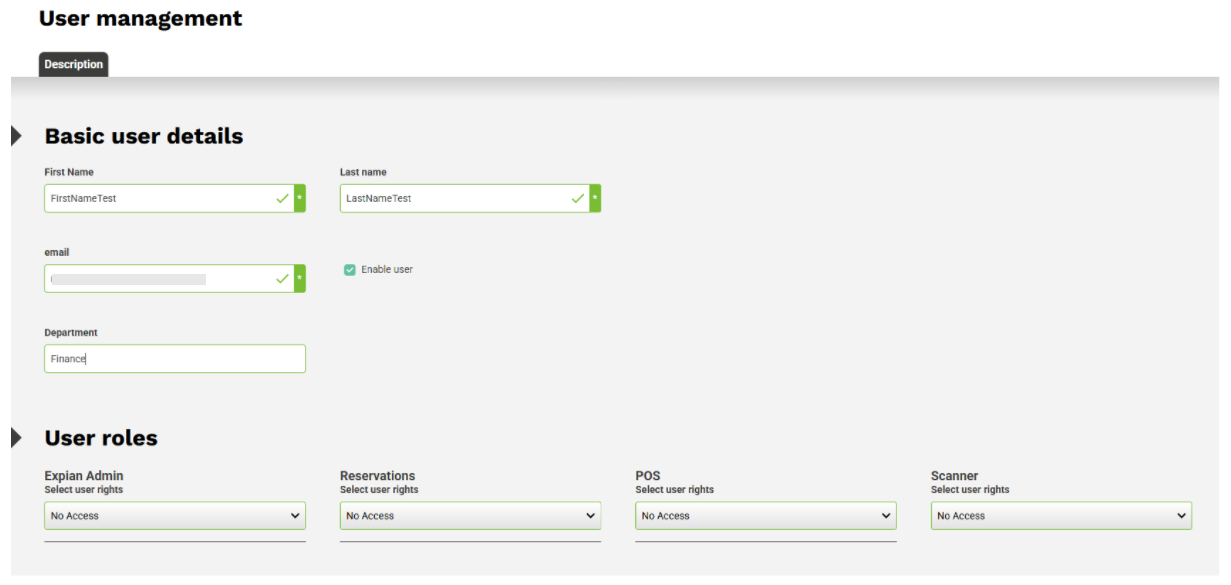
- Enter the First Name, Surname, Email Address, and Department.
- The Enable toggle is switched on by default. You can disable it temporarily if you’re setting up a user before their official start date.
Tip: The user will not be able to log in until a password has been set. You can send a reset email using the Reset Password button, which opens a confirmation modal.

User Roles and Access Levels
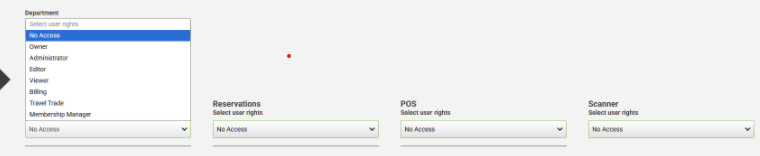
Each user must be assigned a User Role, which determines what areas of Expian they can view or edit.
Primary User Roles
Each Role can be refined further by selecting a User Type and applying User Rights, defining what actions (Read, Create, Update, Delete, Publish, or Use) are permitted within each module.
Default Rights Overview (Simplified)
Note: This table summarises common defaults. Custom permissions can be applied per client setup. Always refer to the latest configuration or your organisation’s internal policy before changing access rights.

Managing Existing Users
On the User Administration page, you can:
- View all users or filter by Role.
- Search for users by Name or Email Address.
- Edit user details or update departments.
- Change User Role, Type, or specific User Rights as needed.
- Deactivate users who no longer require access.
Regularly reviewing active users helps maintain security, ensures compliance with internal controls, and keeps your system aligned with current staffing and responsibilities
Password Management
Clicking the Reset Password button sends the user an email with instructions to set a new password.
This option should be used when onboarding new staff or assisting users who have lost access.
Security Note: Password resets should only be initiated by authorised administrators. Passwords are encrypted and cannot be viewed within the system.
Best Practices
- Assign each user the minimum level of access required to perform their job.
- Avoid sharing user accounts; always create unique logins for individuals.
- Use clear, consistent naming conventions for departments and roles.
- Review user access quarterly or whenever team structures change.
- Deactivate accounts immediately when a staff member leaves or no longer needs access.
- Keep a record of administrator permissions for audit and compliance purposes.
- Test role-based permissions after major updates or configuration changes to ensure they still behave as expected.
Summary
The User Administration module centralises control over who can access what within the Expian platform.
By managing roles, rights, defining permissions effectively, and maintaining regular reviews, organisations can balance operational flexibility with strong security and compliance.
When maintained correctly, User Administration ensures accountability, data integrity, and efficient collaboration across all departments, from ticketing and reservations to reporting and finance.
Appendix: Roles & Rights Quick Reference
The following table summarises the default roles and permissions within Expian.
It is designed as a quick lookup guide for administrators when assigning user access or troubleshooting permission-related issues.
Note: Depending on client configuration, additional roles (e.g. Trade Partner, System Integrator, API User) may exist.
These roles typically have restricted access to specific functions and should not be assigned to general staff without consultation with an administrator.
Permission Types Explained
Each permission controls how a user interacts with data in Expian.
Tip: Always verify permissions in a staging or test environment before assigning new rights to production users.
Additional Guidance
- Custom roles can be created by the Expian Admin to meet specific business needs.
- Permission changes are logged in the History Tab for audit purposes.
- If users report missing functionality, verify both their role and assigned rights, missing 'Use' or 'Update' permissions are common causes.
- Roles and permissions may differ between Travel and Attractions clients depending on system setup.
Best Practice for Role Assignment
- Keep the number of full Admin users to a minimum.
- Assign Reservations or POS roles for day-to-day operations.
- Use the Scanner role exclusively for on-site validation staff.
- Regularly export a list of active users and review their assigned roles for accuracy.This can be achieved from the Reservations Portal. See Reports Overview → Data Sources → Users
- Document all role changes in internal logs to maintain traceability.
Feature Highlights Appendix
-
View-only access to module data
Read
Generates reports, monitors performance, analyses sales trends
Full access (Read, Create, Update, Publish)
Read / Update
-
User Roles
Scanning only
Audit & Governance
Restricted access for scanning and validating tickets only.
Enhances accountability and traceability.
Add new records or entities
Update
-
Control actions (Create, Read, Update, Delete, Publish, Use).
Scans and validates tickets at gates or entry points
Permanently remove records
Category
Maintains traceability for compliance and security audits.
Ensures users only access relevant modules.
Read
Create a new event or customer record
Products & Promotions
Publish
Reporting, Transactions
Read
Reset Password
Reservations
User Management
Access to in-person sales, payment processing, and ticket redemption.
Read, Create, Update, Refund
Reservations, Orders, Products, Customers
Reporting, Analytics
Full access (Read, Create, Update, Publish)
Security Management
Read, Update
Sends secure password setup email.
Protects user credentials and simplifies onboarding.
Reporting & Analytics
POS (Point of Sale)
-
Regularly review active users and permissions.
Manages customer bookings and reservations
User Management
Full access
Reporting & Analytics
Creates products, updates pricing, manages integrations, assigns user roles
Sells tickets at physical locations, processes payments, prints receipts
POS
Scanner
Permission
Read
Read
Password Management
Finance / Accounting (optional)
Description
Creates and edits bookings, applies discounts, issues refunds
Create / Edit Users
-
CRUD Permissions
Definition
Reservations
Access to business data for insights and auditing
Scan a ticket, export a report, run a system process
Read
Unique Emails
Expian Admin
Description
Use
Role Review & Reporting
Access Scope
-
Revenue recognition, refunds, reconciliation
Prevents unauthorised access from inactive users.
Ensures accurate records and user traceability.
Typical Permissions
Reservations / Orders
Scanner
Read
Read / Update
Enforces granular control and compliance.
Execute an operational action
Read / Update
Users & Settings
Full platform access, including configuration, data management, and system settings.
Read, Create, Update, Refund
Use
Handles in-person transactions and ticket issuance
A user can view product information but not edit it
POS, Orders, Payments
Reviews payment data, reconciles accounts, exports reports
POS (Point of Sale)
Enable / Disable Toggle
Read, Update
Feature
Edit existing records
Reservations
Ticket validation and entry control
Read, Update
Keeps access aligned with business structure.
Logs permission changes for audit purposes.
Assign system-wide roles (Admin, Reservations, POS, Scanner).
Primary Purpose
An Admin User can delete System Settings (Language & Currency only), Product (Pricing Rules only), Data Queries and Users
Role
Read, Create, Update, Delete, Publish, Use
Make changes live or visible to other users
Read, Create, Update, Delete
Why It Matters
History Tracking
Read, Create, Update
Full access
Role Assignment
Add new users or update details such as name, department, or email.
Update pricing, change booking details
Role
Read
Access Rights
Operational Oversight
Publish a new service or timetable to live environment
Delete
Activate or deactivate accounts as needed.
Admin
-
Create
Full system configuration and maintenance
Module
Prevents duplicate or shared user accounts.
All modules
Services & Timetables
Access to reservation, booking, and customer management tools.
Expian Admin
Locations & Venues
Example Use
Scanner
Examples of Use
Was this article helpful?
That’s Great!
Thank you for your feedback
Sorry! We couldn't be helpful
Thank you for your feedback
Feedback sent
We appreciate your effort and will try to fix the article